 DATA GOBLINS
Tabular Editor - Which License is Right for You? An Interactive Guide.
From the archive. Published 4 years ago. Power BI and Fabric have changed since, so parts of this may be out of date or describe features that no longer work this way.
A GUIDE TO TABULAR EDITOR 3 LICENSES
…helping you choose which license is best for you.
*This post is part 2 of a weekly series I’m writing about Tabular Editor. *Part 1 introducing TE is here.
Tabular Editor is a must-have tool for making better data models faster in Power BI.** However, there are 4 licenses, each of which have their own costs or limitations**. I frequently get questions from colleagues and clients about which they need, or what the difference is.
To make this easier I’ve built an interactive Power BI guide to the Tabular Editor licenses*.
- Select the features or services you need.
- Based on your selections, the eligible licenses are displayed.
- Additional information & links about the features are available on the page.
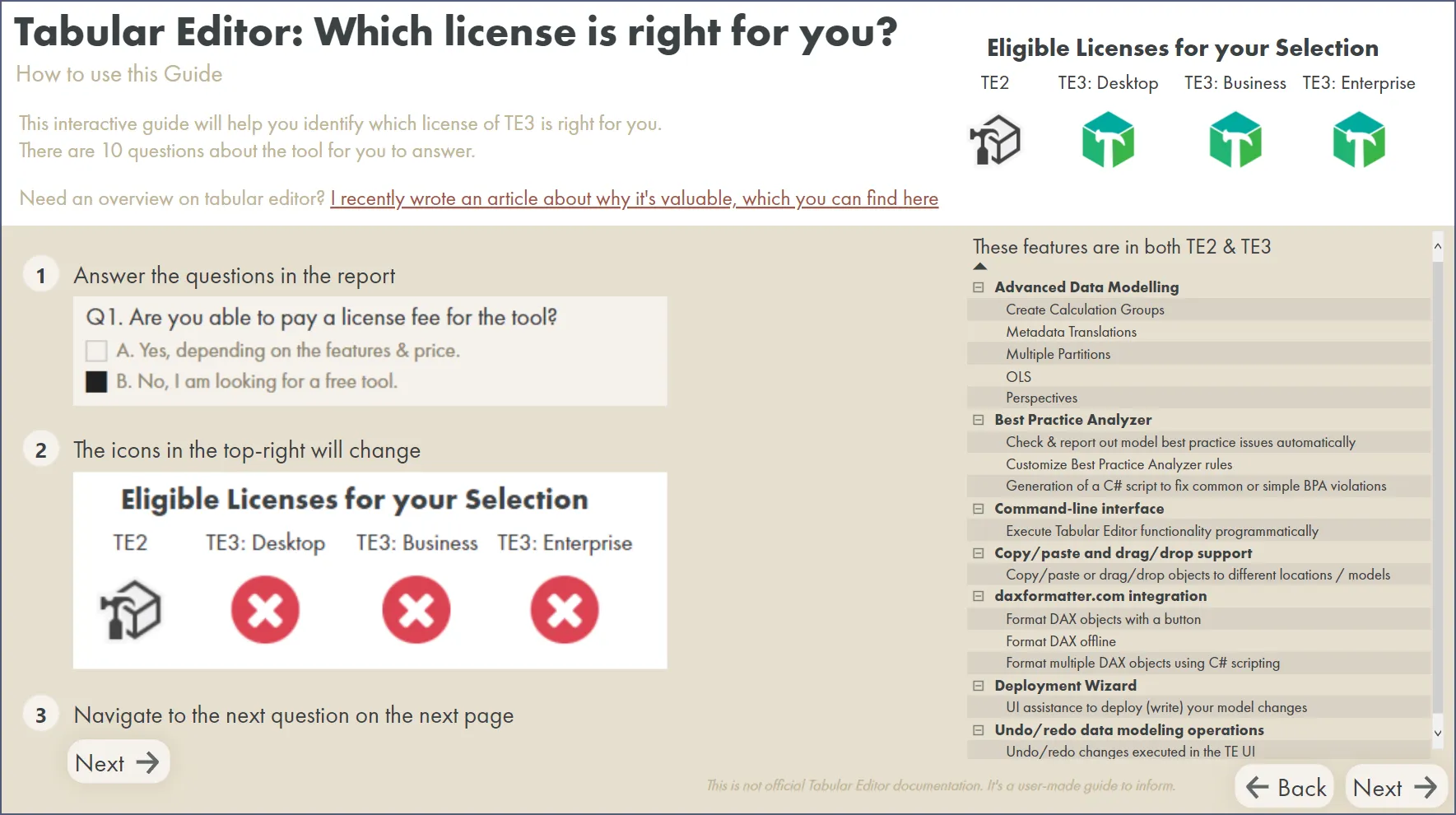 Click to visit an interactive Power BI report for TE Licensing, containing information & references
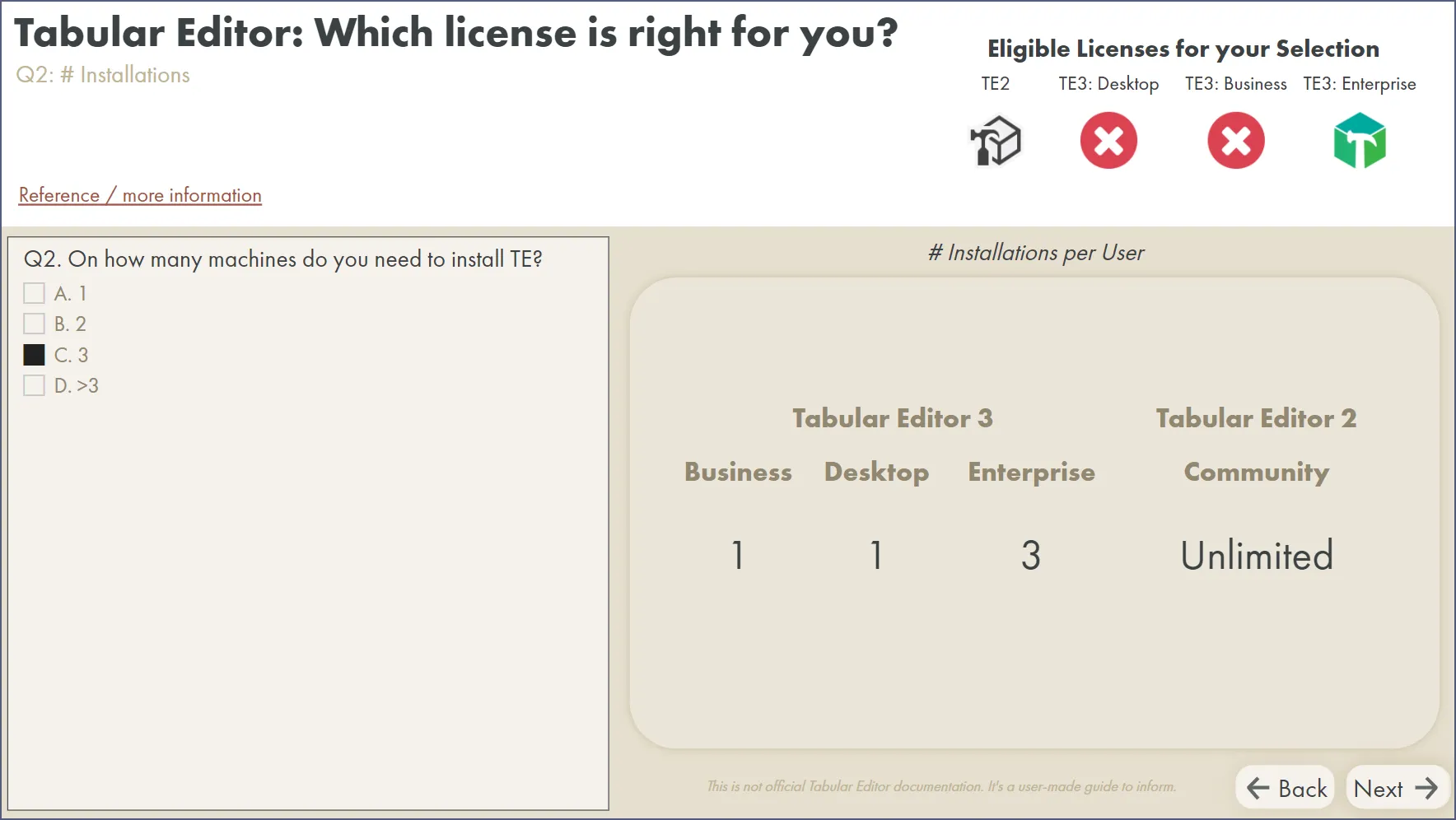 Example: If you need to use TE on 3 machines, this precludes the use of TE3 Desktop & Business licenses
Find out which license fits your needs here
KEY DIFFERENCES HIGHLIGHTED BELOW:*
Tabular Editor 2
(Content not available)
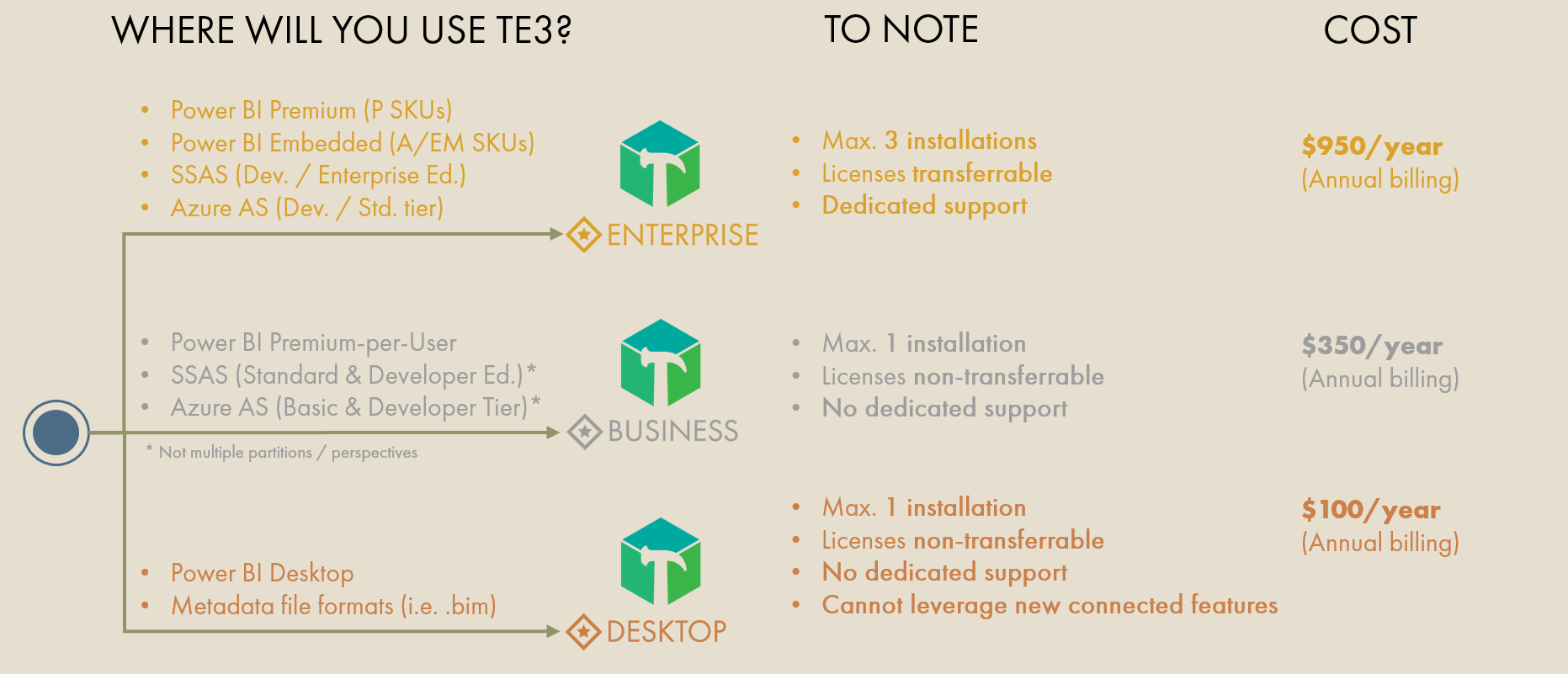
Tabular Editor 2
-
Free (MIT License)
-
Works with:
-
*Power BI Desktop *
-
Any Power BI premium workspace
-
Azure AS
-
SSAS
-
Metadata file formats (i.e. .bim)
-
-
Unlimited installations
-
Highlights & formats DAX code, but provides no additional DAX authoring features or error messages
-
Can see & manipulate all TOM objects & properties
-
Batch editing & renaming of objects
-
Can execute C# scripts but cannot save as macros
-
Cannot author & execute DAX queries Alternative: DAX Studio as an external tool for Power BI
-
Cannot customize UI
-
Cannot use workspace mode (simultaneously connect to workspace & save to disk, i.e. folder structure for version control repo) Alternative: Manually save to folder whenever you save changes to i.e. Power BI Service
-
Cannot refresh, preview or query data from TE. Alternative: SSMS as an External Tool for Power BI
-
Cannot search the model or use Find & Replace Alternative: Use C# scripts or query DMVs from DAX Studio
Tabular Editor 3: Desktop
-
$100 USD / €95 per year, or $10 USD / €9.50 per month
-
2 installations / user
-
Licenses are not transferrable between users
-
Does not support connected features and modifying certain TOM objects (see link here: Power BI Desktop Limitations)
-
Works with:
-
Power BI Desktop
-
Model metadata files (i.e. .bim)
-
-
Some key TE3 features new to TE3 & not in TE2:
-
(Connected Feature) - Refresh or re-calculate your model, or asynchronously refresh parts of it (i.e. 1 table, 1 partition…)
-
(Connected Feature) - Simultaneously save to both disk & service with Workspace Mode, to easily leverage source control** management systems like Git without disrupting your development with TE deployments
-
Analyze & troubleshoot your model using the integrated VertiPaq Analyzer
-
Search across all model objects & documents for keywords, and replace strings in open documents or expressions with a Find & Replace UI
-
Author & evaluate DAX queries from TE3 like you would in DAX studio
-
Explore data in a pivot table-like experience, like analyze in Excel
-
Create drag & drop model diagrams to view tables & relationships, like the model pane in Power BI desktop
-
Record & save C# scripts as macros to easily re-run from a context menu
-
DAX authoring assistance, including informative tooltips from dax.guide & error checking
-
Customize the UI position & appearance, including dark mode
-
Preview table data in TE3 in a sortable & filterable table, like the data pane in Power BI Desktop
-
Tabular Editor 3: Business
-
$350 USD / €335 per year, or $35 USD / €33.50 per month
-
2 installations / user
-
Licenses are not transferrable between users
-
Works with Power BI Premium-per-User (not Premium Capacity) as well as:
-
Power BI Desktop
-
Power BI Premium-per-User
-
Azure AS (Basic tier)
-
SSAS (SQL Server Standard edition)
-
Metadata file formats (i.e. .bim)
-
-
Does not support multiple partitions & perspectives for Azure AS & SSAS.
-
Has all TE2 & TE3 features with supported services.
Tabular Editor 3: Enterprise
-
$950 USD / €900 per year, or $95 USD / €90 per month
-
3 installations / user
-
Licenses are transferrable, and each seat can be reassigned once every 30 days
-
Dedicated support
-
Works with Premium Capacity as well as:
-
Power BI Desktop
-
Any Power BI premium workspace
-
Azure AS (any)
-
SSAS (any)
-
Model metadata file formats (i.e. .bim)
-
-
Has all TE2 & TE3 features
Tabular Editor 3 is a potent tool which can have a huge positive impact on the development time & quality of your Power BI data models. However, if you cannot or are not able to use the commercial version, in general, Tabular Editor 2, combined with other tools like DAX Studio, SSMS & ALM Toolkit should cover your needs.
The biggest advantage of TE3 over TE2 are the many quality-of-life and productivity enhancements which even further boosts your effectiveness. I list below my top features exclusive to TE3, in no particular order:
-
Refresh or re-calculate your model, or asynchronously refresh parts of it (i.e. 1 table, 1 partition…)
-
Simultaneously save to both disk & service with Workspace Mode, to easily leverage source control management systems like Git without disrupting your development with TE deployments
-
Analyze & troubleshoot your model using the integrated VertiPaq Analyzer
-
Search across all model objects & documents for keywords, and replace strings in open documents or expressions with a Find & Replace UI
-
Author & evaluate DAX queries from TE3 like you would in DAX studio
-
Explore data in a pivot table-like experience, like analyze in Excel
-
Create drag & drop model diagrams to view tables & relationships, like the model pane in Power BI desktop
-
Record & save C# scripts as macros to easily re-run from a context menu
-
DAX authoring assistance, including informative tooltips from dax.guide & error checking
-
Customize the UI position & appearance, including** dark mode**
-
(Special mention, but not making the top 10) Preview table data in TE3 in a sortable & filterable table, like the data pane in Power BI Desktop
Next up: I’ve written an introduction to the UI & Code Assist functionalities of Tabular Editor 3, to get you started.
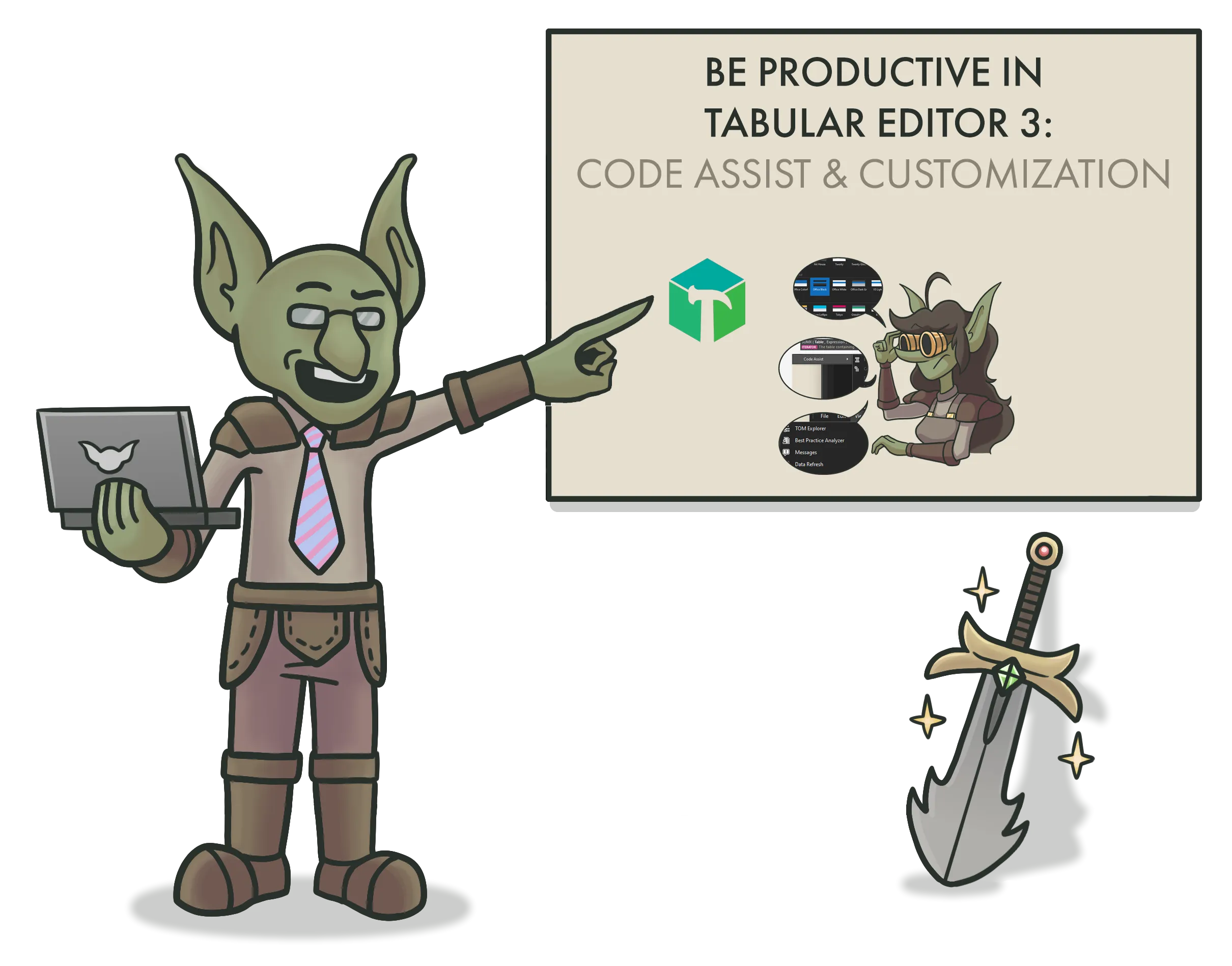 Click here to learn about the powerful code assist & UI customization features of TE3
Disclaimer: This was written in January 2022. Prices and installation limits were re-checked against the Tabular Editor pricing page in July 2026 and corrected above, but the feature comparison has not been re-verified and a fourth Companywide tier now exists. Always check the pricing page before you buy. This was mainly a fun exercise in developing a survey-like Power BI report, while making an informative reference for the TE licenses for myself & others. It shouldn’t be used as an official TE reference.*