# Run Tabular Editor Macros with Keyboard Shortcuts & Toolbar Buttons
> We look at how Tabular Editor shortcuts can revolutionize your productivity, linking them to macros, common actions and more.
- URL: https://data-goblins.com/tabular-editor-keyboard-shortcuts
- Author: Kurt Buhler
- Published: 2023-01-05
- Topic: Tools and automation
# BOOST PRODUCTIVITY WITH SHORTCUTS
*…like **keyboard shortcuts for macros & more** to streamline your development workflow*
---
## WHY USE KEYBOARD SHORTCUTS?
Shortcuts help us boost productivity & efficiency.
**Keyboard shortcuts in software help us be more productive than relying on a user interface, alone.** This may seem trivial or obvious, but it is one of the most under-rated ways to improve efficiency in digital work. Training ourselves to learn and use these shortcuts for software we use daily saves us a tremendous amount of time. Instead of dragging the mouse to the same series of icons, we can use a combination of key presses to get the same result in a fraction of the time. This becomes even more powerful when customizing keyboard shortcuts to unique actions or macros. With keyboard shortcuts, we save time, improve efficiency and deliver faster results.
Using Tabular Editor to develop Power BI models makes you feel like a true data wizard.
**One such software used by many to develop and manage Power BI datasets is Tabular Editor 3.** Tabular Editor helps you build better data models, faster. It has a powerful suite of tools to optimize, analyze & develop your model and the DAX therein. With the 3.4.0 release of Tabular Editor, these productivity benefits have become even greater, as it is now possible to create custom keyboard shortcuts and bind them to operations, actions and even macros to run C# scripts.
**In this article, we dive into custom shortcuts in Tabular Editor.** We will look at a few examples for how this can further accelerate your development by boosting your productivity. Combined with the other features in Tabular Editor, this will empower Power BI developers to accomplish tasks in a fraction of the time as it takes in Power BI Desktop, alone.
---
[](https://tabulareditor.com/)
**CUSTOM SHORTCUTS IN TABULAR EDITOR**
[**I. CONFIGURING CUSTOM SHORTCUTS**](https://data-goblins.com/tabular-editor-keyboard-shortcuts)
[**II. SHORTCUTS FOR ANALYZING MODELS**](https://data-goblins.com/tabular-editor-keyboard-shortcuts)
[**III. SHORTCUTS FOR DEVELOPMENT**](https://data-goblins.com/tabular-editor-keyboard-shortcuts)
---
---
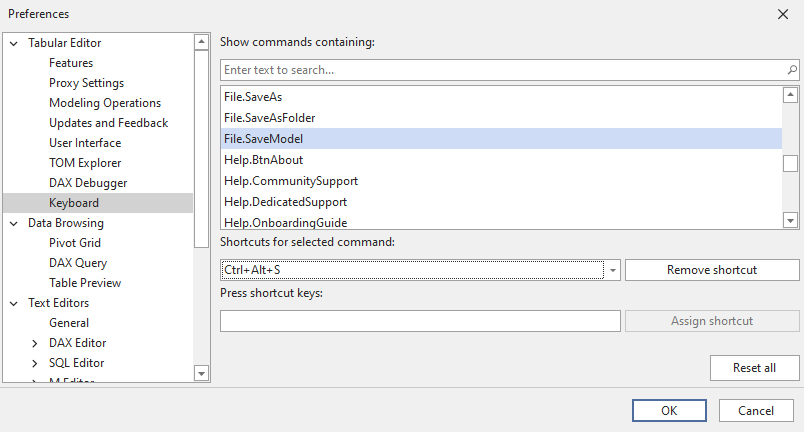
When working with Tabular Editor, you’re likely already using shortcuts like “CTRL + Z” to undo changes or “ALT + 1” to make new measures. **However, you might want to configure additional shortcuts linked to custom actions or even macros.** This is easy to do from the “Tools > Preferences…” menu, under “Keyboard”. Here, you can simply set new shortcuts for each action specified in the list.
The custom keyboard shortcuts menu under “Tools > Preferences… > Keyboard”
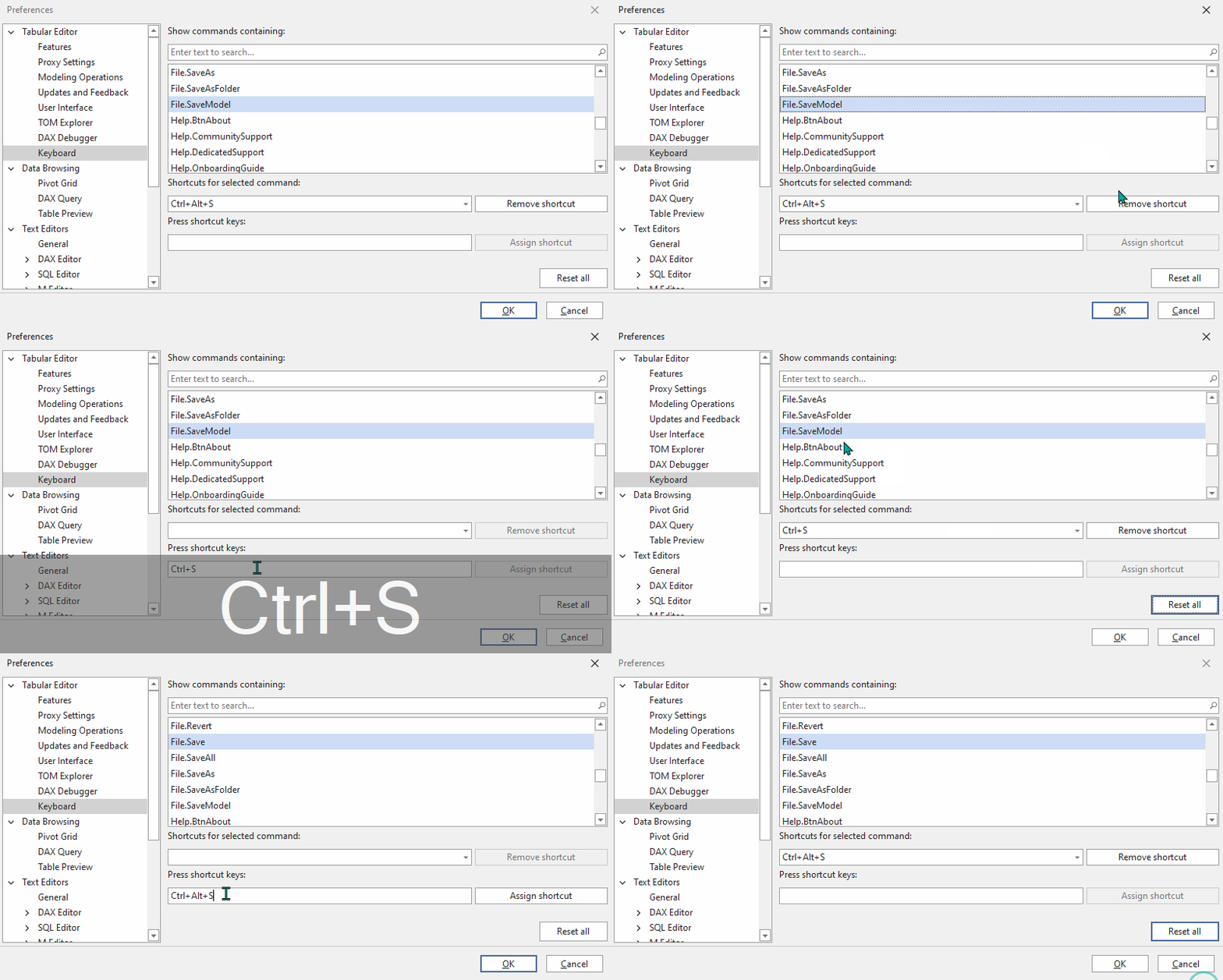
**For example, the default shortcut to save changes to a model is “CTRL + ALT + S”. You may instead want to change this to “CTRL + S”,** which is default mapped to save any open document. This is as simple as entering the shortcut keys and selecting “Assign Shortcut.”. The below .gif demonstrates how to easily do this. Once these shortcuts are configured, you can immediately use them in all your Tabular Editor sessions!
How to set custom keyboard shortcuts in Tabular Editor 3
### FINDING SAVED CUSTOM SHORTCUTS
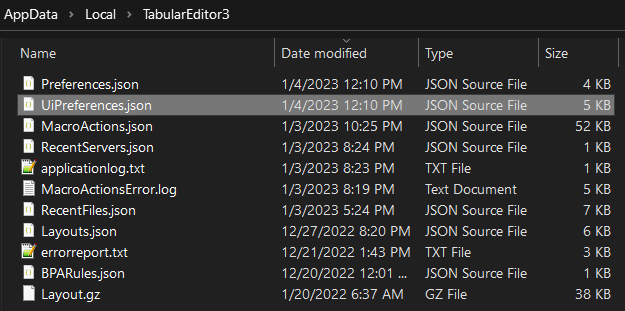
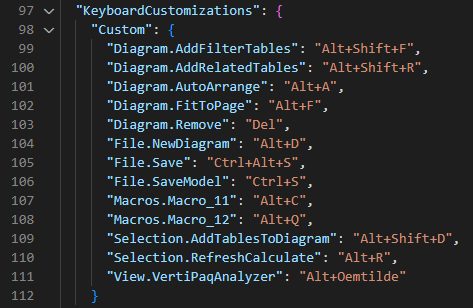
All custom shortcuts are saved in the “UiPreferences.json” file, in ***%LocalAppData%\TabularEditor3.** *They are also visible in the ‘Preferences’ and ‘‘Customization’ menus.
Tabular Editor configuration filesUiPreferences.json
---
**When you open a model for the first time, we need to get our bearings.** We need an overview of what’s in the model; the general structure, complexity and number of objects. We could spend a lot of time going through the TOM Explorer and examining random objects one-by-one, or we could run a few shortcuts to speed this up. Below are a few examples of custom shortcuts that can enhance productivity when auditing or analyzing data models with Tabular Editor.
To be clear, all of these shortcuts must first be configured in *Tools > Preferences… > Keyboard*
### A. DIAGRAM SHORTCUTS
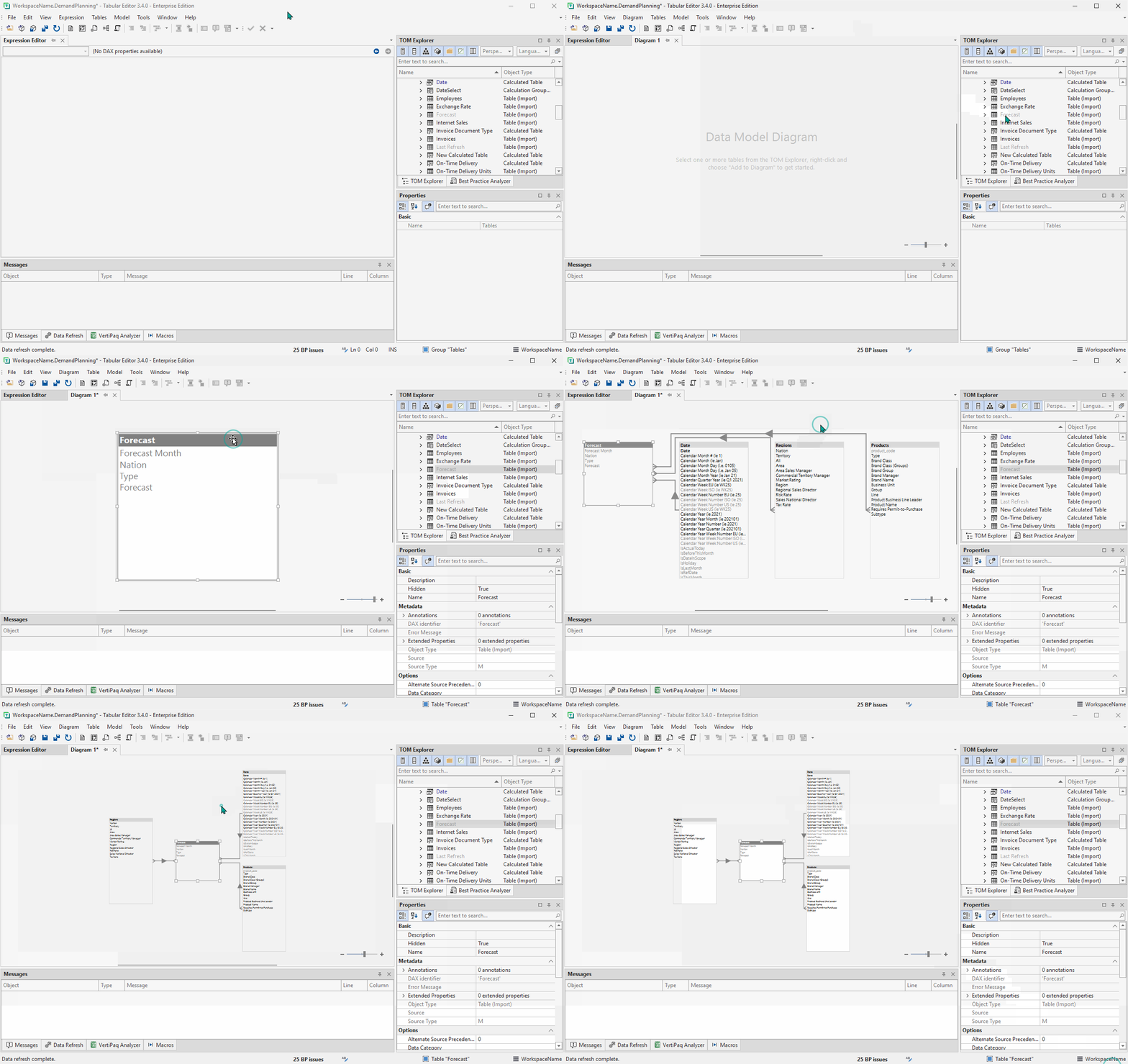
**Configuring shortcuts for model diagrams make it trivial to quickly check table schemas & relationships.** In a few key presses, you can get an overview of how one table is connected to others, particularly important when there are many tables and relationship chains in a model. Checking the model diagrams is one of the first things I do when opening a new model.
In a series of 3 shortcuts and less than 10 seconds, I get a complete diagram for the ‘Forecast’ table.
### B. OPENING VERTIPAQ ANALYZER SHORTCUT
**The next step when analyzing a model is using the VertiPaq Analyzer to check the size, cardinality and row count.** It’s not yet possible to configure the VertiPaq Analyzer to run with a keyboard shortcut, but you can quickly get the VertiPaq Analyzer menu, which may be closed or hidden as you analyze other parts of the model.

### C. PIVOT GRID SHORTCUTS
**In Tabular Editor, it’s possible to open a Pivot Table-like interface to run MDX queries and analyze your data.** This is fantastic for ad hoc querying of data, testing/validating DAX measures, and even analyzing the model, itself. You can use shortcuts to set up a Pivot Grid to analyze your model in mere seconds.

### D. MACROS WITH CUSTOM TOOLBAR BUTTONS
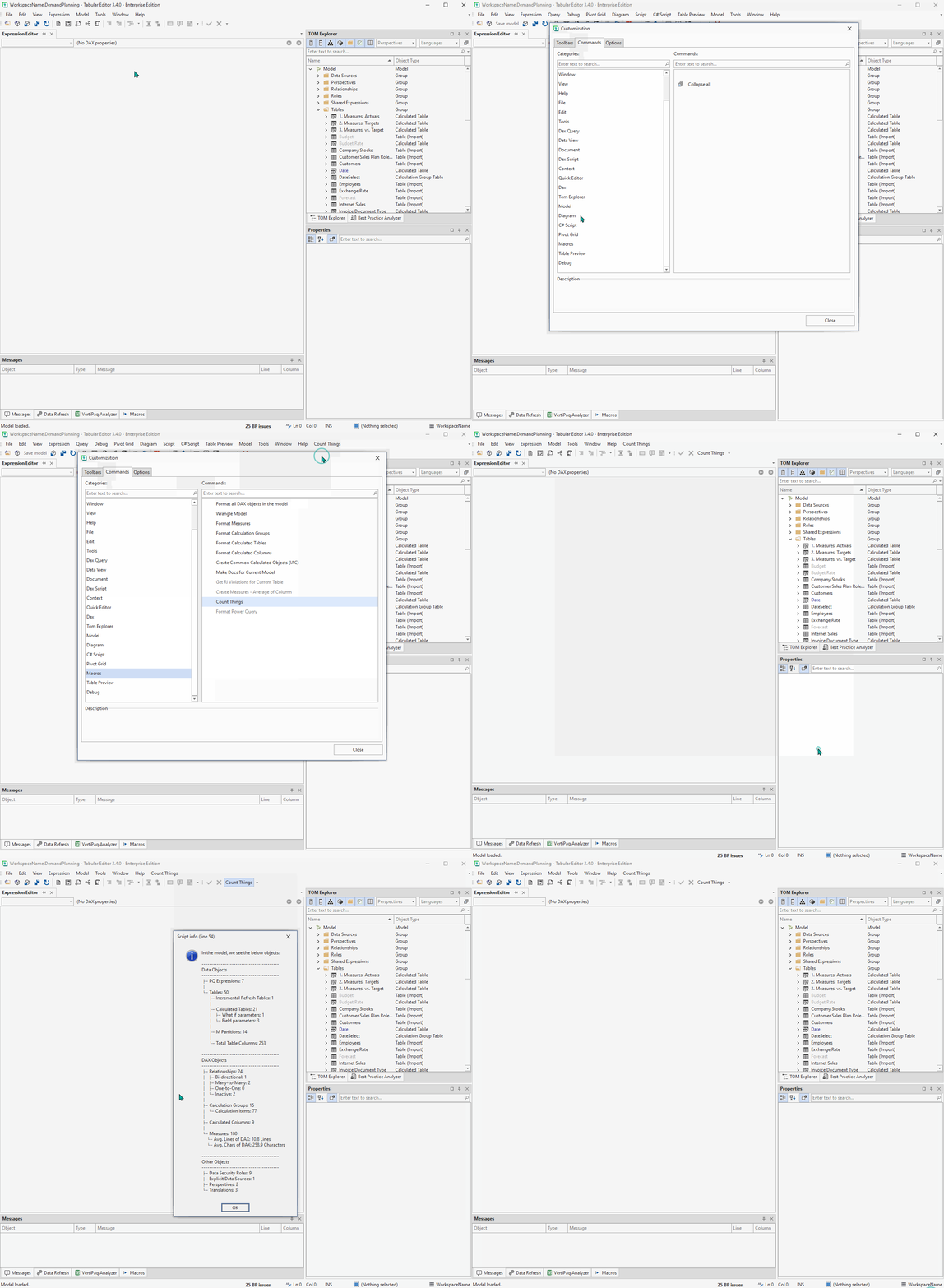
**The real power of custom keyboard shortcuts comes when combined with C# Scripts saved as Macros.** These scripts let you read and write to your model metadata, programmatically. When saved as macros, you can run them from a right-click context menu, or custom toolbar buttons at the top of the application. This is simple to configure; all you need to do is drag the macro from the ‘Customize’ menu ‘Commands’ tab to the toolbar.
Mapping C# Macros to toolbar buttons. Run a macro with a push of a button.
### E. MACRO KEYBOARD SHORTCUTS - EXAMPLE: COUNT MODEL OBJECTS
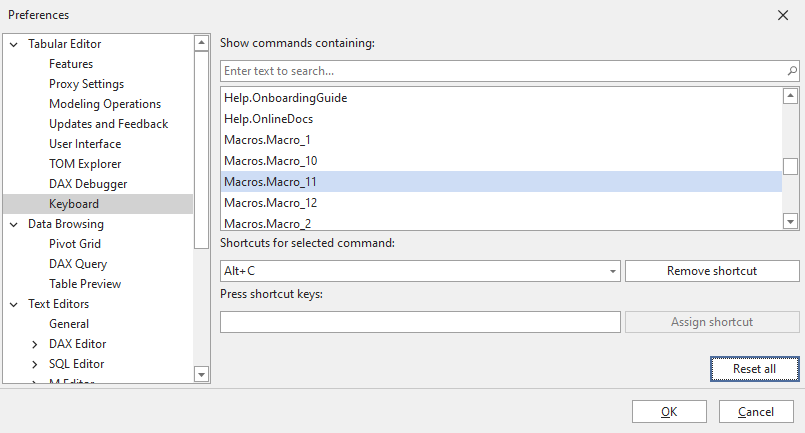
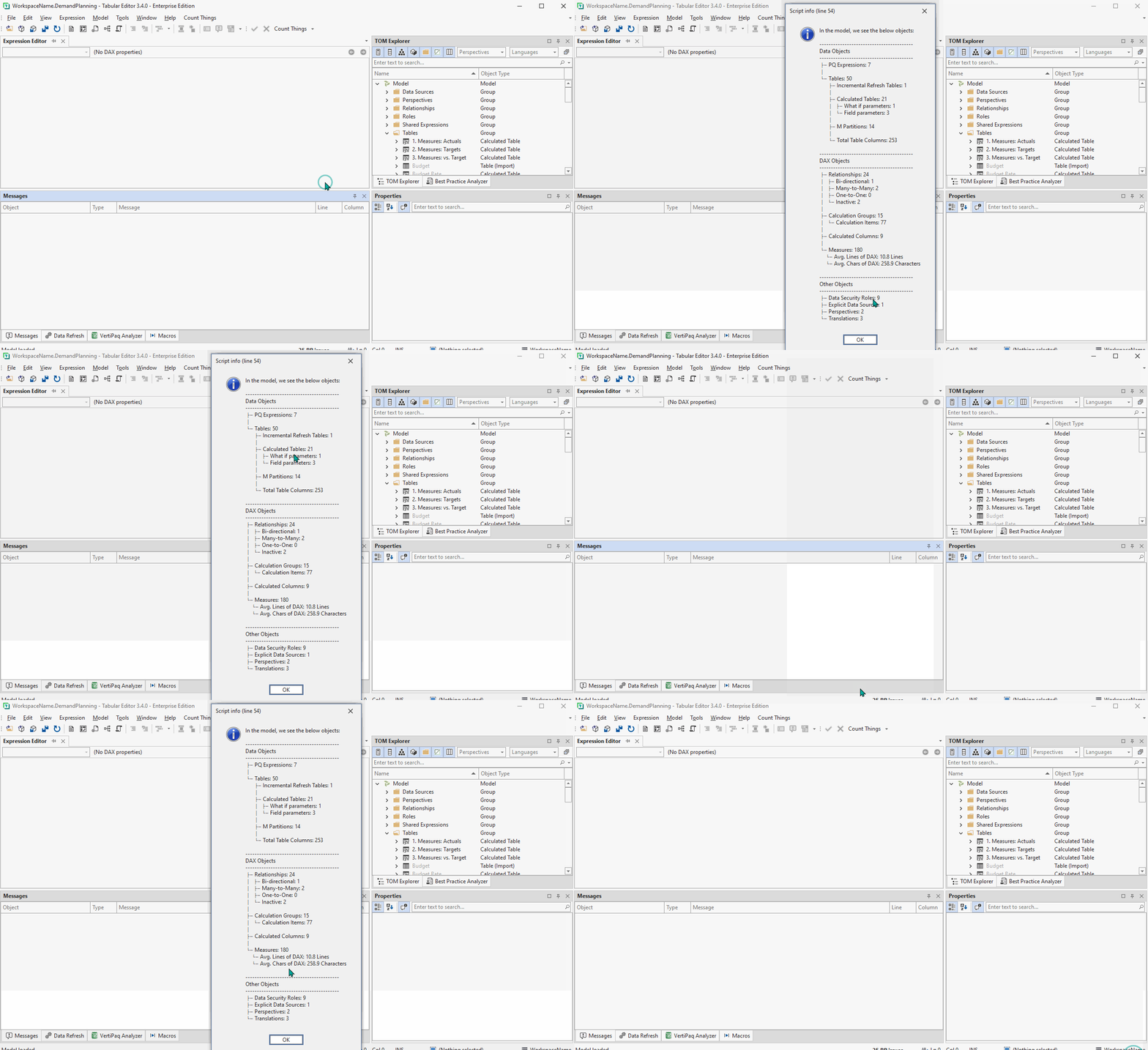
Better yet, you can now map these macros to custom keyboard shortcuts, so they can be run at the push of a button while you work. In the below example, I run a Macro to give an overview of the model objects, quickly counting everything and returning it in a pop-up info box.
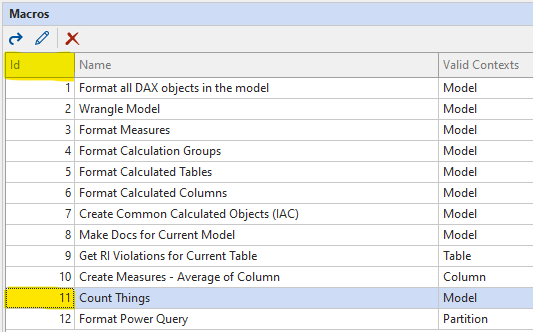
You need the ID of the macro to configure the Keyboard shortcutYou can then find it under Macros.Macro_IDThe macro will run whenever you use the shortcut
---
**The above examples were provided to help us analyze our models. But what about development?** Here we have a plethora of shortcuts we can configure; everything from refreshing tables to formatting code and of course modifying our model metadata. Below I list a few examples I have now configured, but there are of course many more.
### REFRESH TABLES
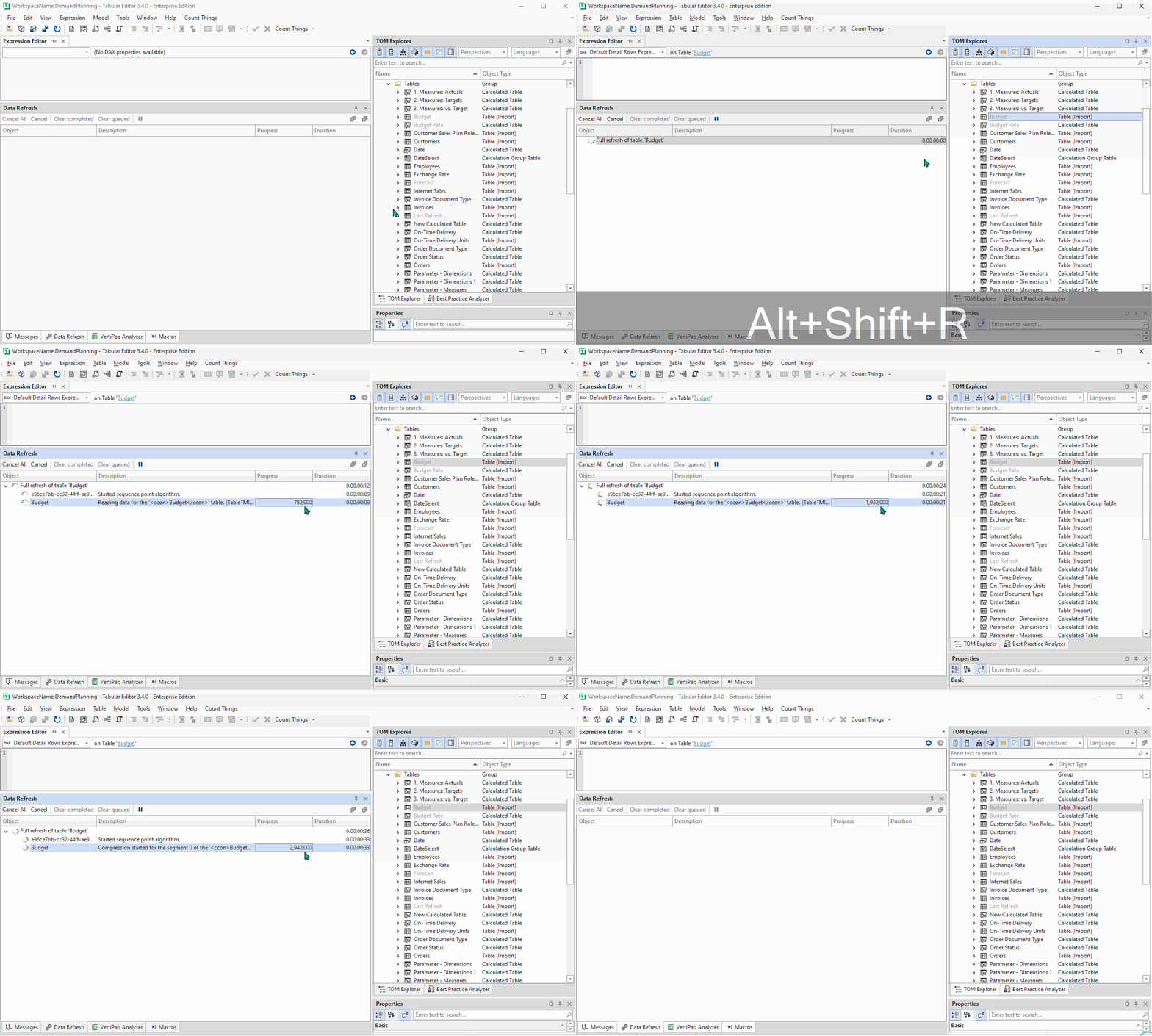
**One of the most frequent operations I perform while examining a remote model or working in Workspace Mode, refreshing the model, tables & partitions can be mapped to a specific shortcut.** I’ve configured this for ‘Calculate’ refresh (to process new relationships, calculated columns, tables & calc. groups) and ‘Full Refresh’ (to refresh the tables irrespective of refresh policy), separately, since I use those most frequently. This is very convenient.
Shortcuts to refresh the model, tables and partitions.
### SHOW DEPENDENCIES
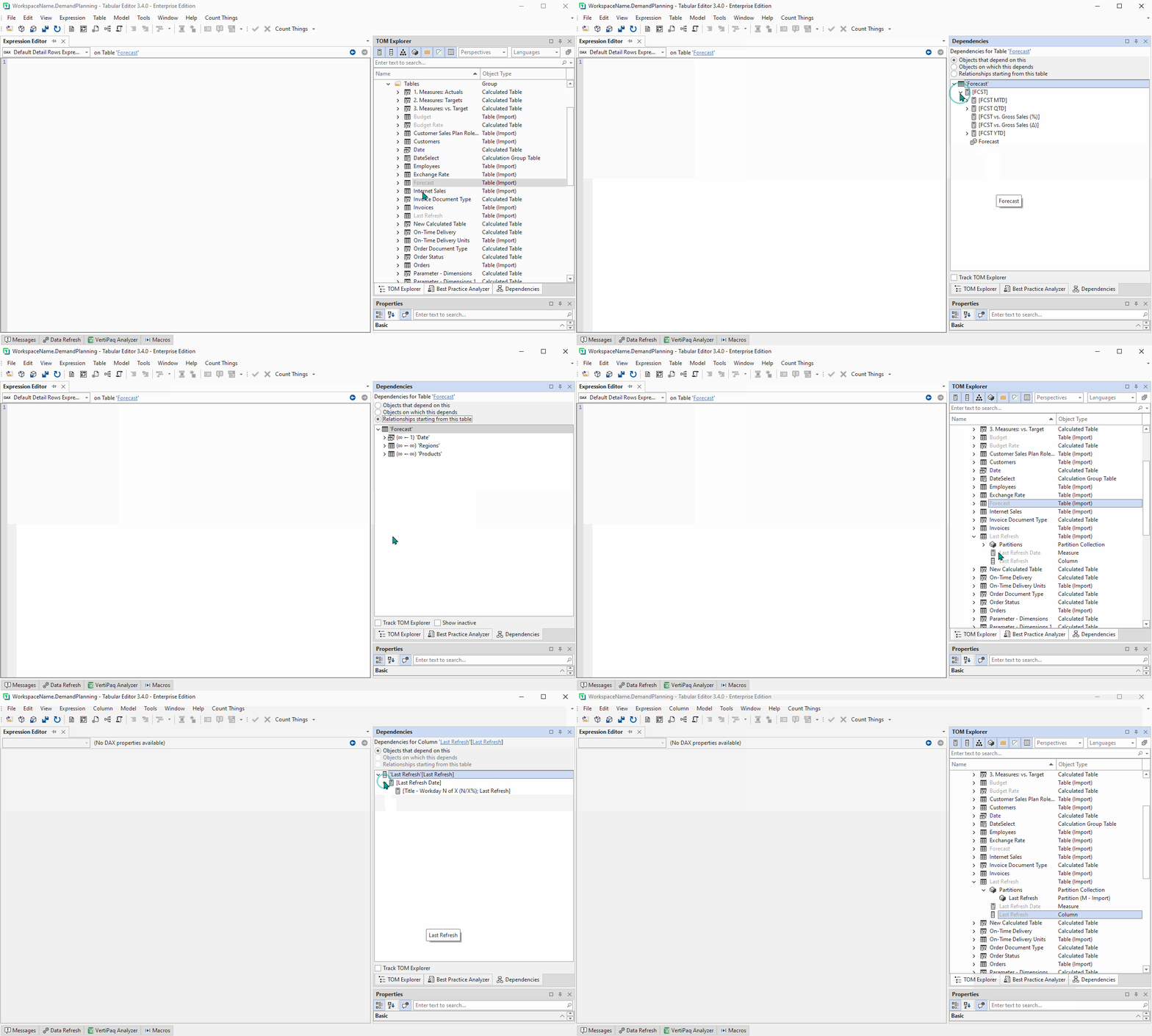
**With “Show Dependencies”, you can see all the upstream or downstream dependencies of an object selected from the TOM Explorer.** When deciding to delete an object, this is a valuable tool to quickly check whether you break another object. This is already mapped to Shift + F12, but is more conveniently re-mapped to keys closer together.
Re-mapping the ‘Show Dependencies’ shortcut
### FORMAT DAX OR POWER QUERY CODE
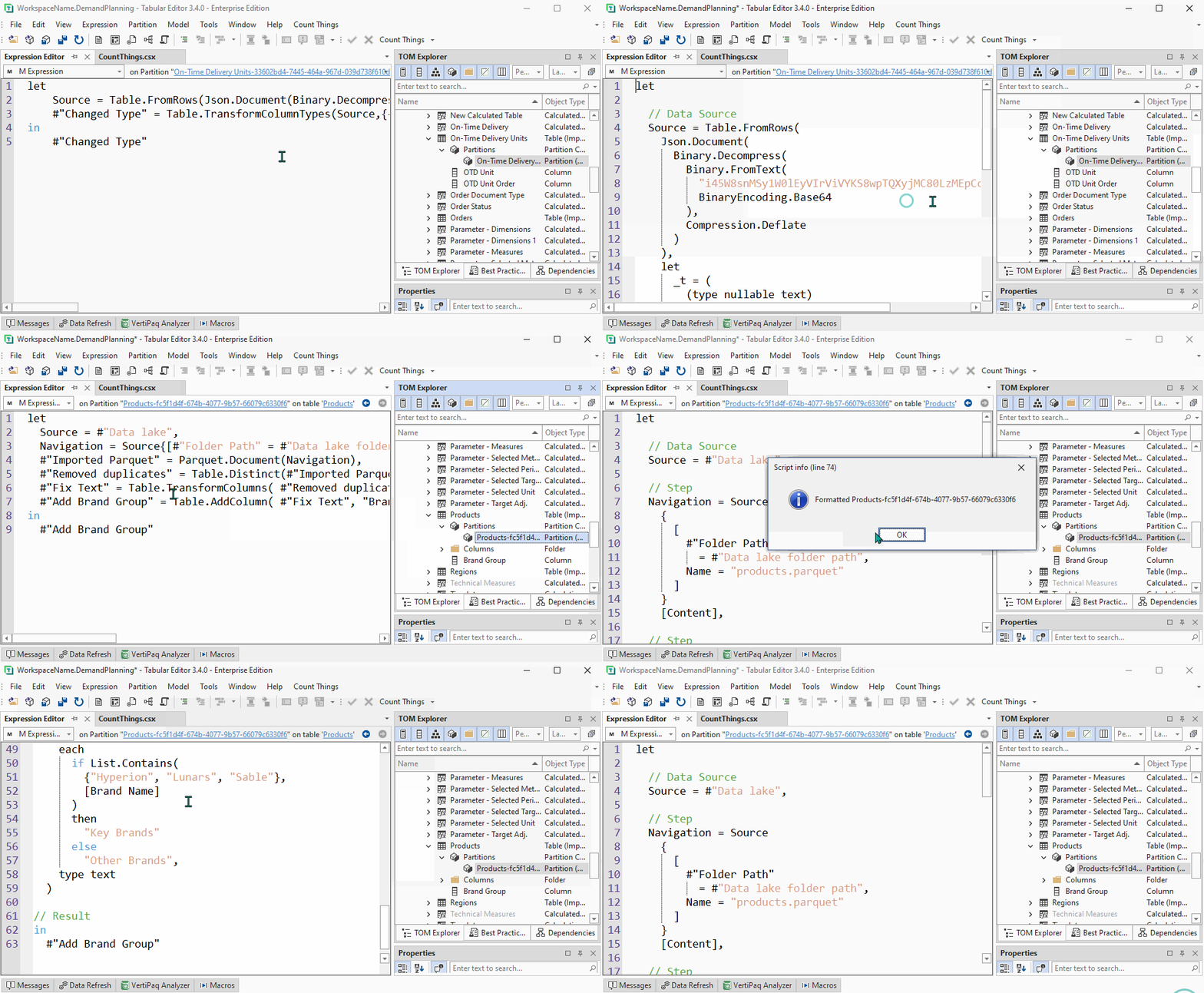
**Formatting code is an essential best practice to make it readable and easier to debug.** DAX can already be formatted with the F5 shortcut, but can be re-mapped if the F keys are used for other global operations. Further, I recently shared a C# Script to format Power Query using the powerqueryformatter API. This script can be saved as a Macro and run with a shortcut so you format Power Query M Expressions as your reading / editing it in the Expression Editor window. See below an example:
An example of how Power Query can be formatted using a macro that calls the formatter API.
### SHORTCUTS FOR TEXT EDITING
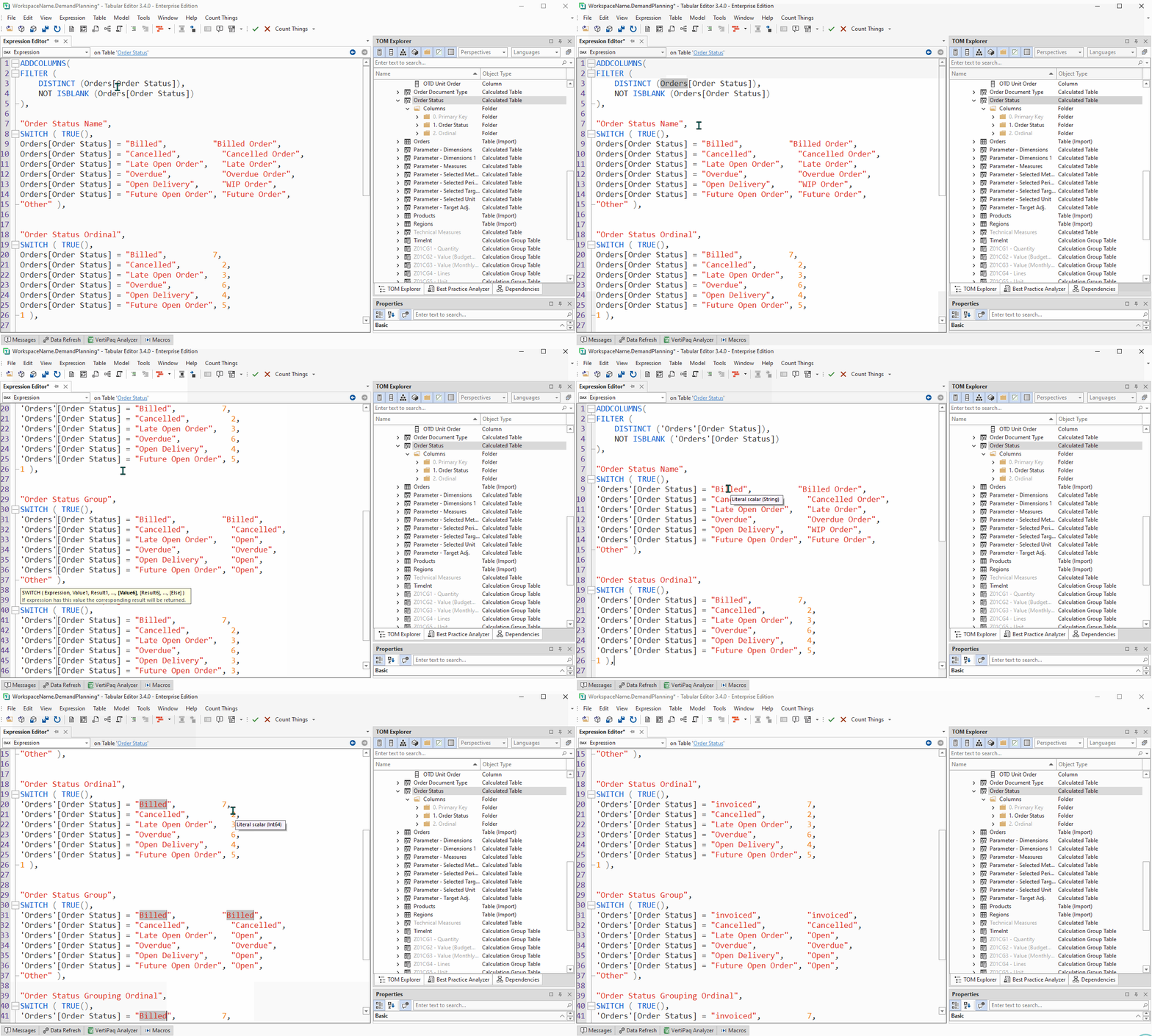
**A wide variety of text editor / code-assist shortcuts exist already in Tabular Editor. These can be re-mapped to your liking so that editing DAX & Power Query code is more efficient.** Since this largely depends on personal preference, I don’t list any explicit examples, above. For illustrative purposes, below are a few expression editor shortcuts you could hypothetically configure:
- *Shortcuts that already exist:*
- **ALT + UP/DOWN:** Move the selected line up or down in the code
- **CTRL + U:** Change the selected text to lowercase (**CTRL + SHIFT + U** = Uppercase)
- **CTRL + [:** Move cursor up a paragraph
- **CTRL + BACK:** Delete word (to the left; DEL to the right)
- **CTRL + SHIFT + BACK:** Delete line (to the left; DEL to the right)
- *Shortcuts you can configure that are not enabled by default:*
- **Editor.MultipleSelectAddEach:** Edit each occurrence of any word at once
- **Editor.MultipleSelectAddNext:** Edits the next occurrence of any word at once; can tap multiple times to keep adding words
- **Editor.RotateSelection // Editor.SwapMainAnchorCaret:** Helps manipulate multiple selections if, for example for accessibility reasons, a keyboard is favoured over a mouse for selections.
*In the below example, I configured ‘MultipleSelectAddEach’ to “ALT + Z” , which makes editing this long-winded DAX expression a lot easier.*
A demonstration of Editor.MultipleSelectAddEach shortcut making simultaneous text edits a breeze.
---
## TO CONCLUDE
**Keyboard shortcuts are important to learn and use if you want to maximize productivity when working with software.** When developing data models in Power BI, we can now configure custom keyboard shortcuts in Tabular Editor to take efficiency to extreme levels. Combined with C# scripting and Macros, we can run complex tasks in a few seconds that would otherwise waste minutes or even hours of development time, every day if done in Power BI Desktop.
*If you create Power BI datasets, it’s strongly recommended that you consider using Tabular Editor 3 and investigating for yourself how custom keyboard shortcuts can kickstart your data model development efficiency.*
---


 **When you open a model for the first time, we need to get our bearings.** We need an overview of what’s in the model; the general structure, complexity and number of objects. We could spend a lot of time going through the TOM Explorer and examining random objects one-by-one, or we could run a few shortcuts to speed this up. Below are a few examples of custom shortcuts that can enhance productivity when auditing or analyzing data models with Tabular Editor.
To be clear, all of these shortcuts must first be configured in *Tools > Preferences… > Keyboard*
### A. DIAGRAM SHORTCUTS
**Configuring shortcuts for model diagrams make it trivial to quickly check table schemas & relationships.** In a few key presses, you can get an overview of how one table is connected to others, particularly important when there are many tables and relationship chains in a model. Checking the model diagrams is one of the first things I do when opening a new model.
 **The above examples were provided to help us analyze our models. But what about development?** Here we have a plethora of shortcuts we can configure; everything from refreshing tables to formatting code and of course modifying our model metadata. Below I list a few examples I have now configured, but there are of course many more.
### REFRESH TABLES
**One of the most frequent operations I perform while examining a remote model or working in Workspace Mode, refreshing the model, tables & partitions can be mapped to a specific shortcut.** I’ve configured this for ‘Calculate’ refresh (to process new relationships, calculated columns, tables & calc. groups) and ‘Full Refresh’ (to refresh the tables irrespective of refresh policy), separately, since I use those most frequently. This is very convenient.
 ## TO CONCLUDE
**Keyboard shortcuts are important to learn and use if you want to maximize productivity when working with software.** When developing data models in Power BI, we can now configure custom keyboard shortcuts in Tabular Editor to take efficiency to extreme levels. Combined with C# scripting and Macros, we can run complex tasks in a few seconds that would otherwise waste minutes or even hours of development time, every day if done in Power BI Desktop.
*If you create Power BI datasets, it’s strongly recommended that you consider using Tabular Editor 3 and investigating for yourself how custom keyboard shortcuts can kickstart your data model development efficiency.*
---