# Monitoring Power BI using REST APIs from Python
> I explain how to call the Power BI REST APIs from Python. You can do this either with a dedicated user or a Service Principal registered from the Azure Portal. I’ll walk through the necessary steps to get this working.
- URL: https://data-goblins.com/power-bi-api-python
- Author: Kurt Buhler
- Published: 2022-05-17
- Topic: Admin and governance
# USE PYTHON TO GET DATA FROM POWER BI APIs
*…such as the what a **user** or **service principle** has access to*
---
## IN THIS ARTICLE: CALL POWER BI REST API FROM PYTHON
- **Creating a Service Principal** for use with the Power BI REST APIs / Admin APIs
- **API Permissions & Power BI Tenant Settings** for the Service Principal to use the APIs
- **Authenticating** with a Service Principal (or user) from Python using azure.identity
- Writing a **HTTP GET requestfrom Pythonto the Power BI APIs**
- **Normalizing the response json** to a table / dataframe.
Example result dataframe for workspaces obtained with the Admin API
---
## CONTEXT
I recently watched a livestream by [**Haven’s Consulting**](https://www.youtube.com/channel/UCjlfQwqb-0S40XQ8seYPLSw) where [**Matthias Thierbach** explained an easy way to try the Power BI APIs from Visual Studio Code](https://youtu.be/3RidKdK2KOM). I use the PowerShell cmdlets , but had not used the APIs as such. This filled in some missing pieces of the puzzle for me to get started trying this out in Python, something I’ve been meaning to do for over a year, now.
A few blog posts speak about this topic, already, but I had so many issues getting simple things to work that I thought to highlight the specific, nuanced points I struggled with regarding access & activity logs.
---
## TUTORIAL
### STEP 1: PREPARE A SERVICE PRINCIPAL (SP)
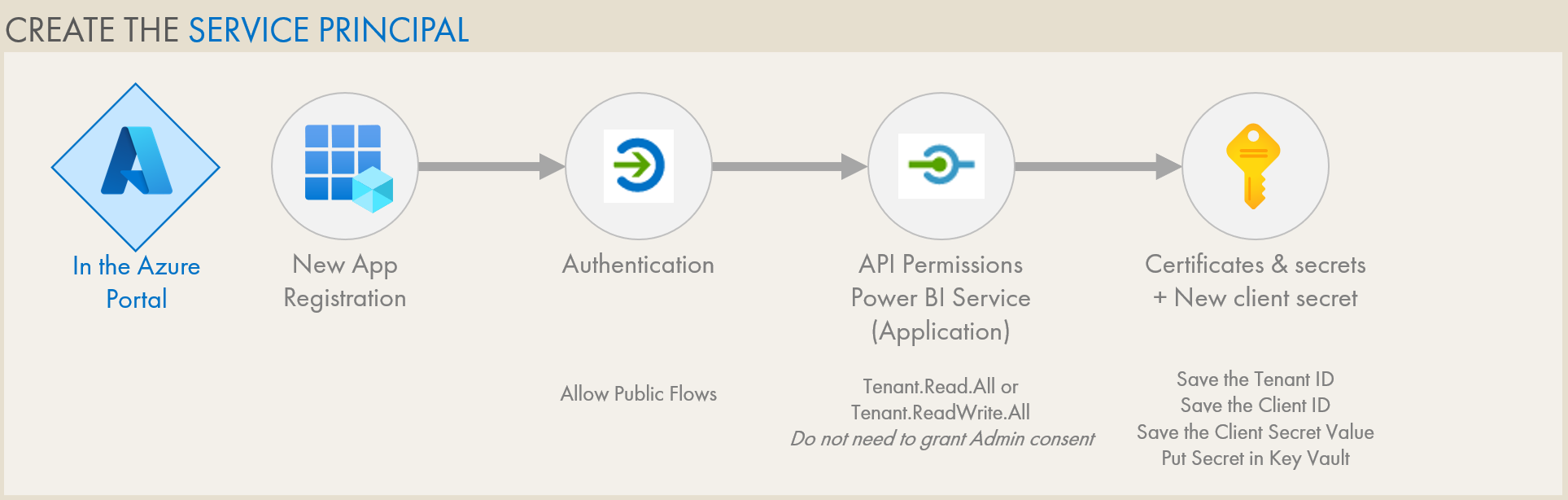
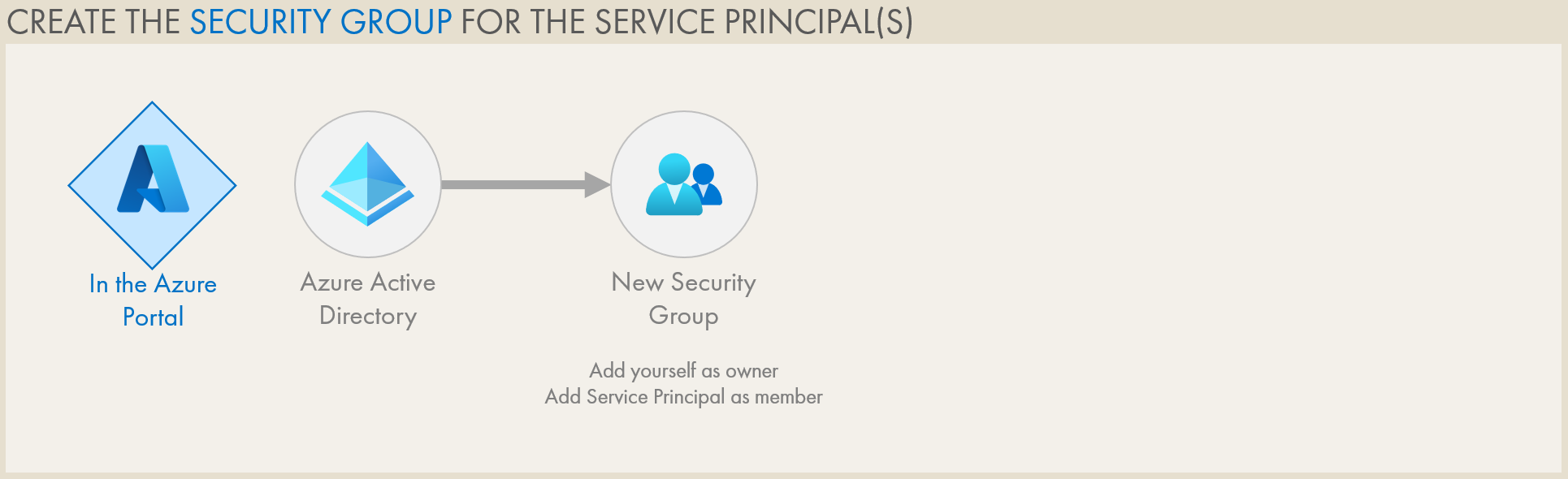
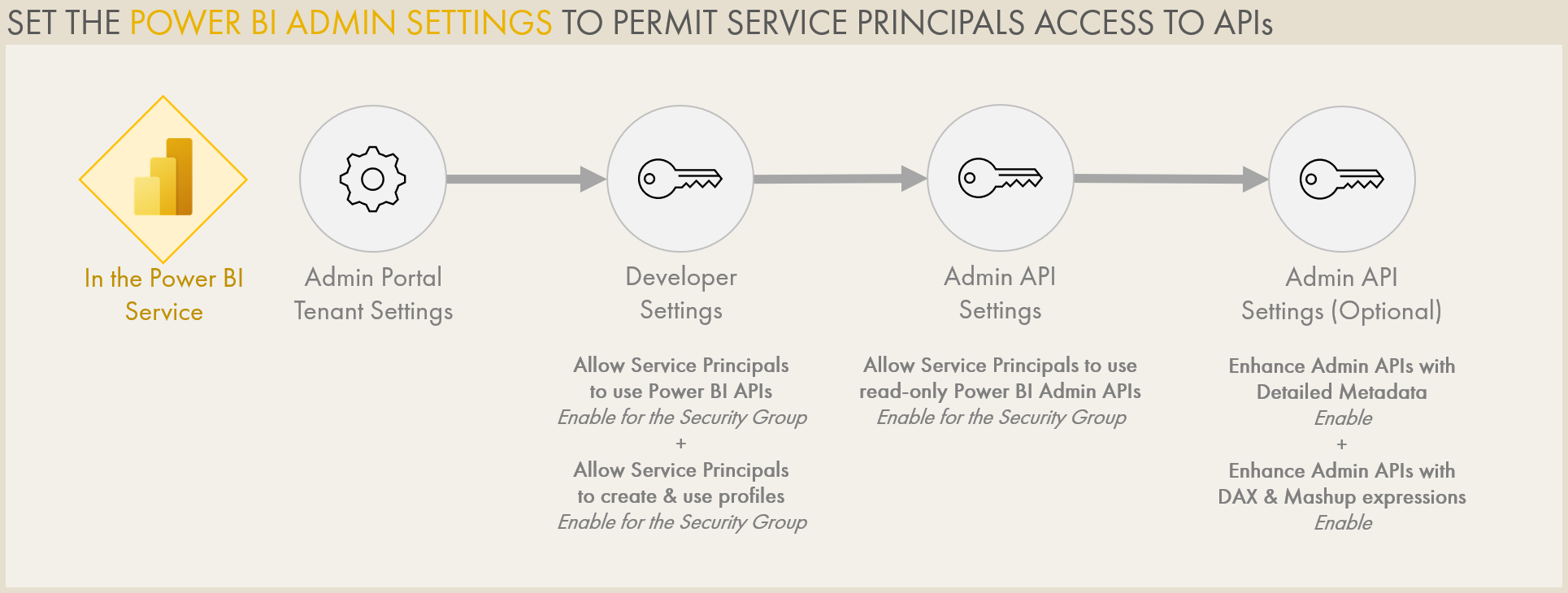
If you’ve never set up a service principal or worked with the APIs before, it’s understandable that it feels daunting. There are a lot of options, and the documentation gets really confusing - at times even contradictory. It isn’t so bad, though. All you have to do is register a new app (create the Service Principal; SP) with the correct API permissions, create a security group for it (or add it to an existing SP security group), and modify the Power BI Admin Portal tenant settings, appropriately, so the SP can use the APIs.
The below settings worked for me. *Note the following:*
- **The ‘Allow Public Flows’ option is not necessary depending on how you authenticate.**
*When disabled, the Client Secret and Interactive Browser authentication methods still work, for me.*
- **I had some issues with the API permissions.**
*Granting admin consent resulted in 401: Unauthorized responses, which is rather strange.*
*I did not need to add Delegated API permissions for specific artifacts; once the SP had Tenant.Read.All or Tenant.ReadWrite.All, I was able to get the data I needed.*
*This may be different if you are doing POST requests to write changes to the service, though.*
- **It’s a best practice to store secrets in your Azure Key Vault**
*You can use the *[*Azure Key Vault secret client library for python*](https://docs.microsoft.com/en-us/azure/key-vault/secrets/quick-create-python)* to get your secrets programmatically, so they aren’t stored explicitly as string variables in the code. This is a better security practice.*
Register the app, set the API Permissions, and save the tenant ID, app client ID, client secret valueAdd the SP to a security group for the Power BI admin settingsAdjust the Power BI admin settings, appropriately.
---
### STEP 2: WRITE AN AUTHENTICATION FLOW
There’s a [**wonderful blog by datalineo**](https://www.datalineo.com/post/power-bi-rest-api-with-python-part-iii-azure-identity) that educated me about the existence of the [**azure.identity**](https://docs.microsoft.com/en-us/python/api/overview/azure/identity-readme) library for handling this. It’s simple, easy and it works. For authenticating, this library provides you with various options. They’re all listed on the docs site, but I’ll highlight the below:
**Service Principals**
- [**ClientSecretCredential Class:**](https://aka.ms/azsdk/python/identity/clientsecretcredential) Using a secret
- [**CertificateCredential Class:**](https://docs.microsoft.com/en-us/python/api/azure-identity/azure.identity.certificatecredential?view=azure-python) Using a certificate
**Users**
- [**InteractiveBrowserCredential Class:**](https://aka.ms/azsdk/python/identity/interactivebrowsercredential)Via a web browser, the user logs in to authenticate
- [**UsernamePasswordCredential Class:**](https://aka.ms/azsdk/python/identity/usernamepasswordcredential)Hard-coding the UPN & Password; doesn’t work with MFA
The below approach uses the **ClientSecretCredential** with the SP we just created. You can also try it for yourself using **InteractiveBrowserCredential** class, but this requires you take manual action to authenticate in the default browser.
### STEP 3: WRITE THE HTTP GET REQUEST
For this you can just use the requests library to pass two arguments:
- **API:** The URI as a string that you are using, i.e. https://api.powerbi.com/v1.0/myorg/groups
- **Header**: A dictionary with the ‘Authorization’ key set as ‘Bearer ‘ + your access token
> *Note for the Admin API - *the Admin API requires some additional syntax:
1. **TopN Argument:** i.e. $top=3000
The end of the API endpoint must have a TopN argument. You have to loop through the results if you return more than 5000 results, or you exceed the request limit.
2. **Expand Argument:** i.e. $expand=users,reports,dashboards,datasets
The first argument should have a **question mark (?)** before the **dollar sign ($)**.
Multiple arguments must be separated by an** ampersand (&).**
### STEP 4: PARSE AND WRITE THE RESPONSE
The response is returned as an object which you can handle as a json using the json library. From here, you can flatten the json object to a dataframe (table) and/or output the result.
---
## EXAMPLE
The below is a python script to get Power BI workspaces that the service principal is a member to. If you want to test it, add the SP as an Admin to 1 workspace, replace the string variables with your own code, and execute the below:
---
---
### MORE LINKS
- [**REST API easy from Visual Studio Code by Mathias Thierbach**](https://github.com/mthierba/pbi-rest-api-vscode-samples)
A repo of code snippets to try out the REST API in a really easy way
- [**REST API Power Query Repo by Štěpán Rešl**](https://github.com/tirnovar/Power_BI_REST_API_PQ)
A library of custom functions to query the APIs directly from Power Query, in PBI or Excel
- [**Building a Power BI Admin View by BI Elite**](https://www.youtube.com/watch?v=cTqFNg_y9lw)
End-to-End video walkthrough of querying APIs in Power Query and building a report
- [**Download Report Authored in Browser as PBIX by James Bartlett**](https://powerbi.tips/2022/05/power-bi-hack-download-report-authored-in-browser-as-pbix/)
Explanation on how to use the Power BI REST APIs to download reports to pbix that were created in the service. These “undownloadable” reports could have also been created by pushing with a deployment pipeline or because they were rebound with the API, previously.
---