 DATA GOBLINS
Format Power Query in Power BI (Updated)
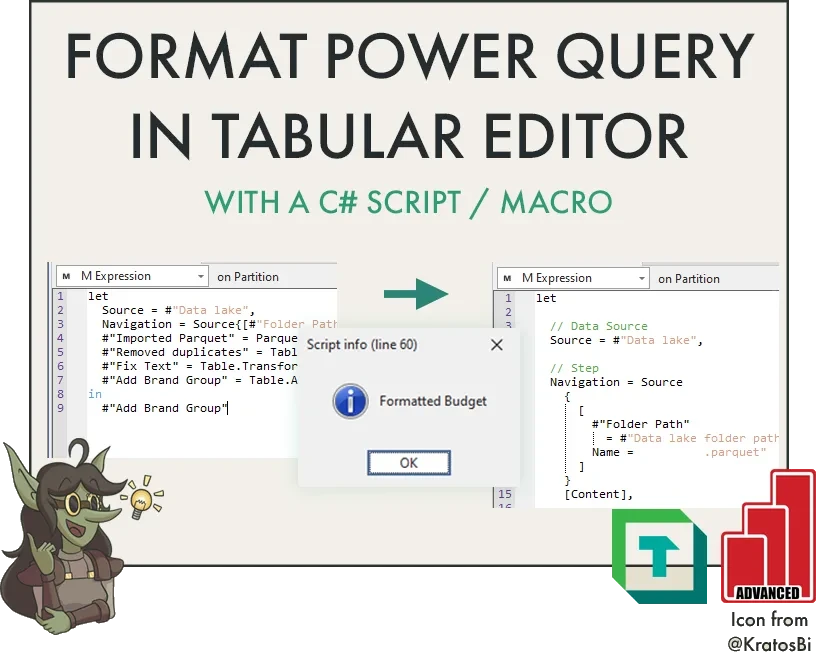
From the archive. Published 3 years ago. Power BI and Fabric have changed since, so parts of this may be out of date or describe features that no longer work this way.
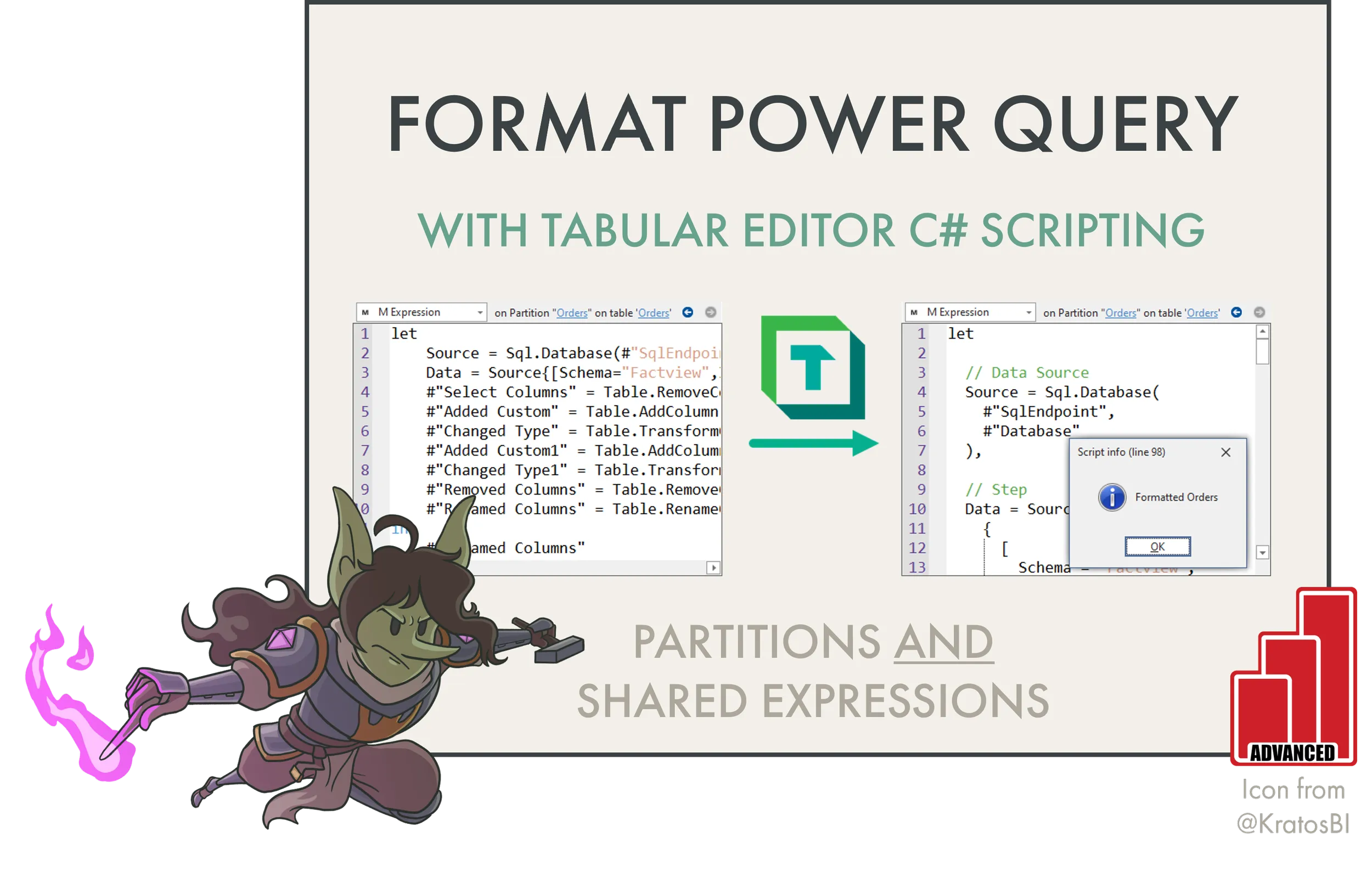
FORMAT POWER QUERY WITH C# SCRIPTS
…calling the powerqueryformatter.com API for a selected M partition or shared expression

WHY FORMAT YOUR CODE?
Formatting code makes it easier to read, understand and debug. For this reason, it’s a best practice to format and add comments to both DAX and Power Query (M) code in a Power BI model. For DAX, this is simple if you use the Power BI external tool Tabular Editor, which has the DAX formatter from SQLBI built-in (both for Tabular Editor 2 and 3). With the push of a button, you can format DAX in your model.
But why should you format Power Query M code, specifically? For the same reasons as why you should format DAX. It makes the code easier to read and understand, and helps both you and other developers make changes.
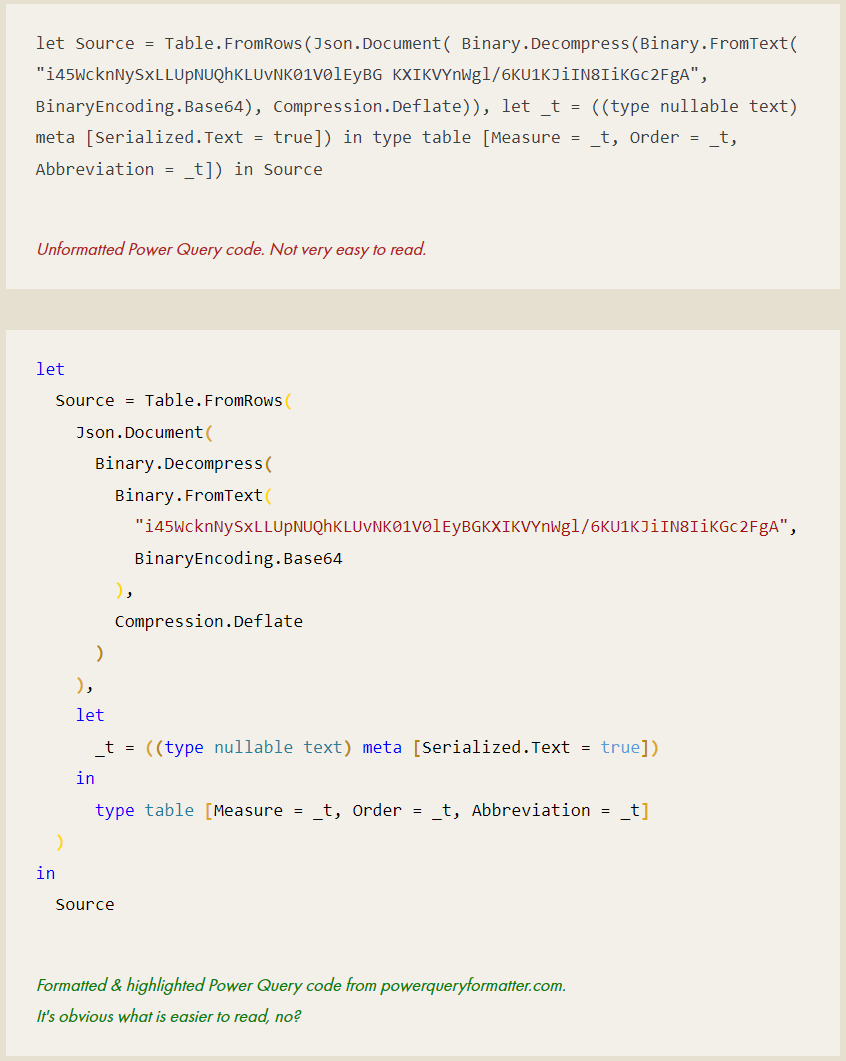
Consider the following example of Power Query code that is unformatted without syntax highlighting, versus the code that is formatted in the second box, thereafter.
POWER QUERY FORMATTER API
A Power Query formatter from Power Pivot Insights does what its name suggests - it formats Power Query code pasted in their tool. While this is helpful, you still have to handle the code manually. However, they also have an available API. We can call this API in a Tabular Editor C# script toformat Power Query, automatically.
C# SCRIPTS & MACROS IN TABULAR EDITOR
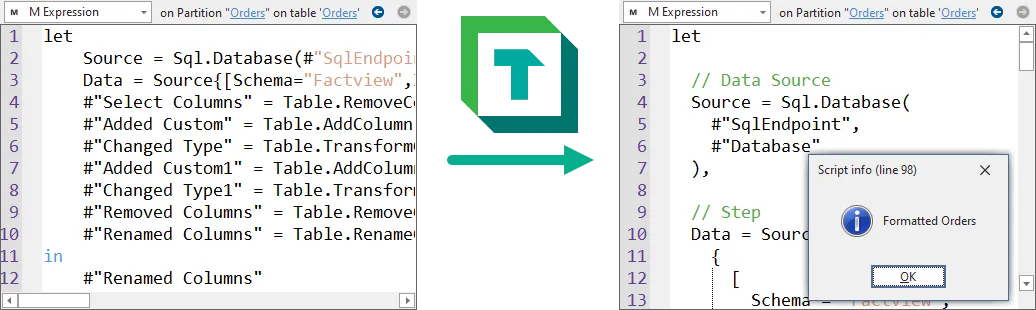
One of the most powerful features in Tabular Editor, C# scripts allow programmatic access to the Tabular Model Metadata. We can use them to read, interact with and write model metadata changes with C# written inside the Tabular Editor “C# Script” window. An example use-case for Tabular Editor C# scripts are to format Power Query of a selected partition or shared expression in our model.
An example of this is shown in the following animated .gif:
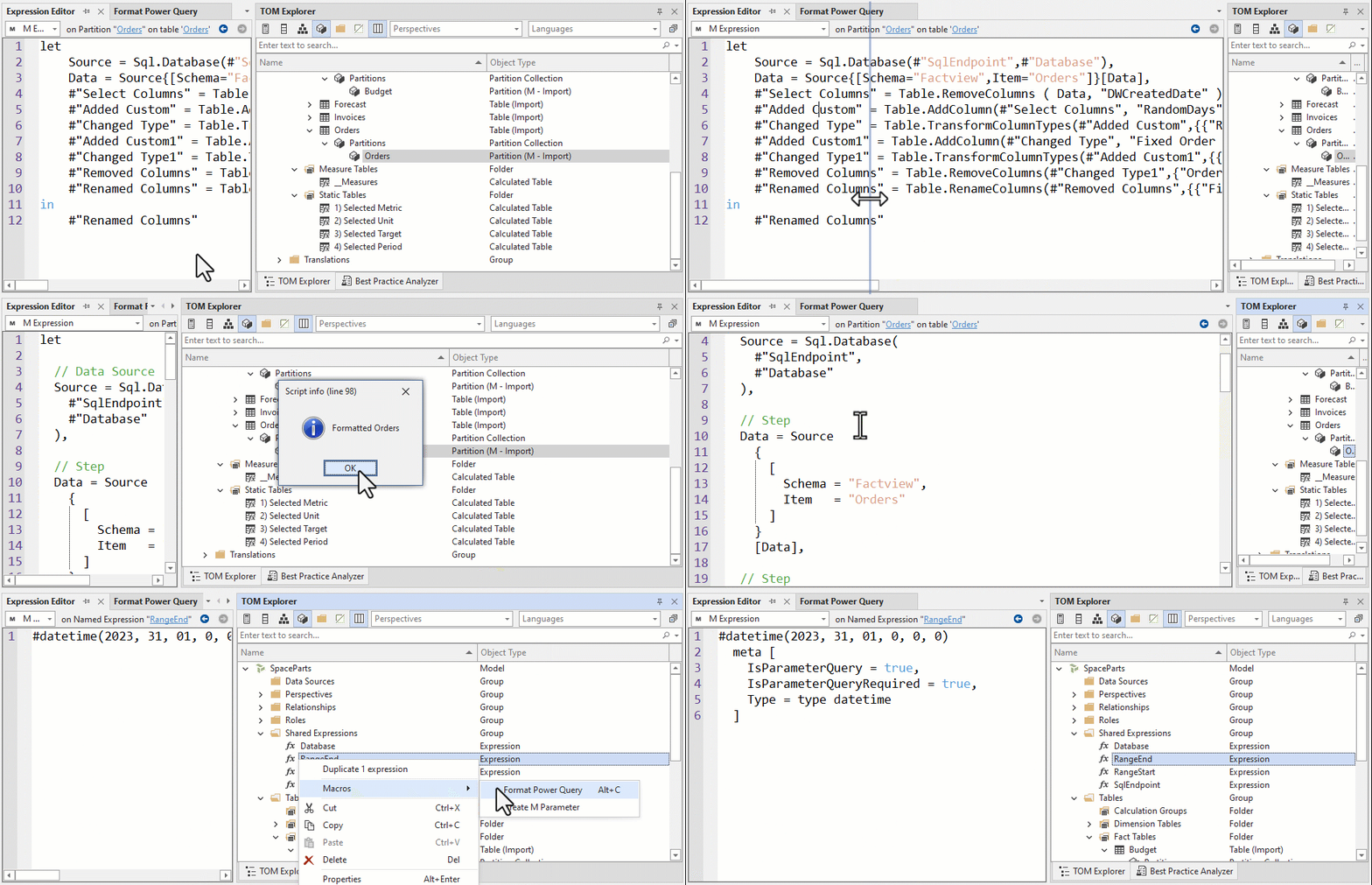
Copy the below C# Script to the Tabular Editor C# Script window and use it on a selected M Partition or Shared Expression to format it.

TO CONCLUDE
Formatting DAX & Power Query code is an important best practice in your Tabular Models. From Tabular Editor, you can format DAX code out-of-the-box. Formatting Power Query is now something you can easily do thanks to C# scripting. This lets you automatically format M Expressions in your table partitions or shared expressions of your model when connected to model metadata (.bim or database.json) or a remote data model via XMLA Endpoint.
NEXT UP
Read about how C# scripts like this can be saved as macros and bound to keyboard shortcuts or custom toolbar buttons. With a push of a button or keyboard hotkey, you can format your Power Query code!