 DATA GOBLINS
Format all DAX in your model at once with Tabular Editor
From the archive. Published 5 years ago. Power BI and Fabric have changed since, so parts of this may be out of date or describe features that no longer work this way.
USE TABULAR EDITOR TO FORMAT ALL DAX IN YOUR MODEL
…turn them into macros to format all your DAX with the push of a button. Easy!
CLICK TO DOWNLOAD C# SCRIPTS FOR TABULAR EDITOR
C# Scripts in Tabular Editor
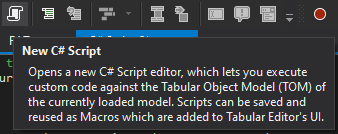
A handy feature of Tabular Editor is the ability to create C# scripts to simplify & automate basic development tasks. This is a feature available in both Tabular Editor 2 (TE2; free version) and Tabular Editor 3 (TE3; licensed version), though in TE3 these scripts can be turned into macros for easier repeated use in the GUI.
One such task that can be easily automated is the formatting of DAX code in the data model. Particularly upon inheriting a data model from someone else, formatting the DAX is often the first thing we tend to do. This is already super easy in TE and can be done with the push of a button. But if you have a lot of measures, calculation groups, calculated columns & tables… it gets tedious.
For measures, there is a method described for doing this in the TE docs, and some other good blog posts like this one from Ed Hansberry which sent me into the rabbit hole of trying out C# scripting in TE. Since then it’s been a nice thing to experiment with to streamline my Power BI workflow. I had never used C# before so it was interesting to use it as a new avenue for learning.
From Calculation Groups to Columns: Format all the things!
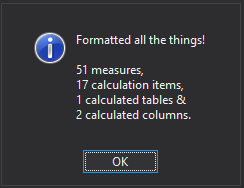
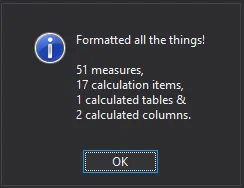
I needed to be able to format DAX for a lot of calculation groups, as well as other objects. So I took what I learned from others and made the below scripts to format & count the objects, returning a pop-up upon execution of the script / macro. The below scripts work for:
- Measures
- Calculation Items in Calc. Groups
- Calculated Tables*
- Calculated Columns*
- All Objects (Format All Things)*
Hope they are useful. I still might see if I can make one for Roles & Detail Row Expressions.
*As described in the TE docs, TE has limitations in altering the model in Power BI Desktop. It is thus not possible with a connection to Power BI Desktop to format DAX for Calc. Tables & Columns unless you enable “unsupported features”, which is not recommended. This works fine if you are connected via XMLA endpoint.
How to use the scripts
Note: While I wrote & use these scripts in Tabular Editor 3, they should also work in Tabular Editor 2.
- Open Tabular Editor
- Create a new C# script (file > new… > C# script)
- Copy & paste the code below
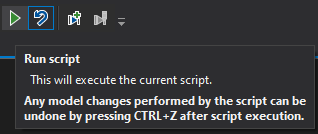
- Select “Run Script” (Keyboard Shortcut F3)
- (TE3) Select “Save as Macro…” if you want to make it easily re-usable.
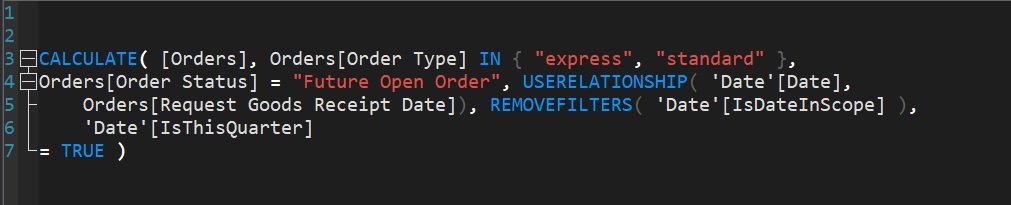
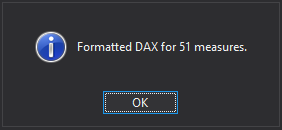
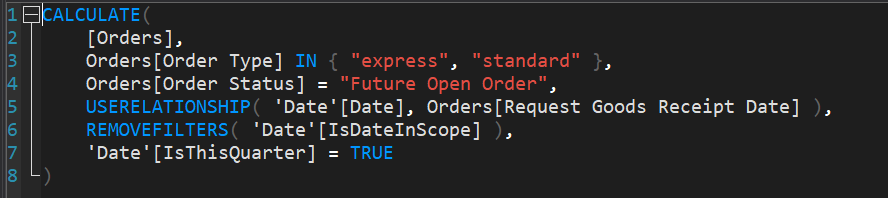
However if you look in Power BI, you see that the measure now starts next to the definition. Depending on the length of the first line of DAX code, this can be distracting, so it’s sometimes preferable to include a new line at the start when formatting. This is also described in Ed’s blog post.
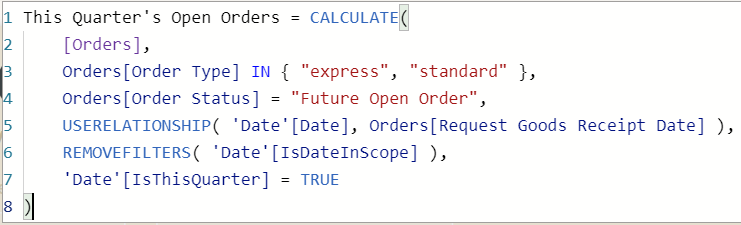
Format all Measures (Long-Line format with leading new line)
Another advantage of this syntax is you can easily adjust it to format all measures with short-line instead of long-line format. To format in short-line you just have to add one argument - shortFormat: true
Format all Measures (Short-Line format with leading new line)
The below code will format & count calculation items in the model. This can be done in both Power BI Desktop & cloud-published data models, so I like to have this done together with the measure formatting, usually, in a single macro.
Note: Will not work on Power BI Desktop unless “unsupported features” are enabled, which is not recommended.
Note: Will not work on Power BI Desktop unless “unsupported features” are enabled, which is not recommended.
Thanks to Mateusz Mossakowski for informing me about the deprecation of FormatDax().
The below script (which you can download by clicking on the button) is a combination of all the above.
Keep in mind again that formatting Calculated Tables & Calculated Columns will not work with Power BI desktop unless you enable “unsupported features”, which is not recommended. It does work perfectly fine when connecting to a model using the XMLA endpoint.