 DATA GOBLINS
Count Measures in Power BI Datasets with Tabular Editor
From the archive. Published 3 years ago. Power BI and Fabric have changed since, so parts of this may be out of date or describe features that no longer work this way.
GET A QUICK OVERVIEW OF A MODEL
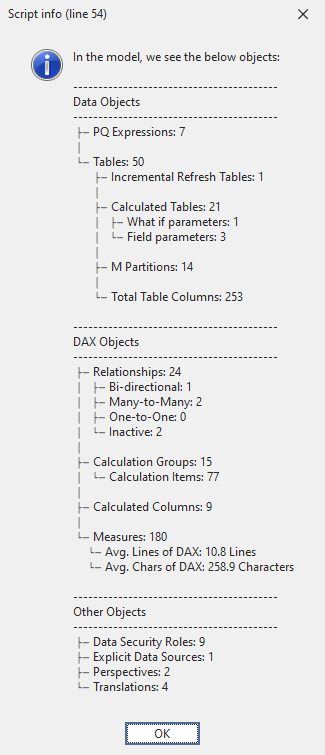
…with a pop-up of the number of objects like measures, tables, relationships, and more

GETTING A HELICOPTER OVERVIEW
When you first open a model made by someone else, or one that you made a long time ago, it’s easy to feel lost. Clicking through the tables and display folders, it’s hard to get a quick overview of the overall model complexity. A number of tools in Tabular Editor 3 help you do this, such as the VertiPaq Analyzer, which reveals the total model size, and the number of tables & columns.
But what if you want the number of measures, or the number of Calculated Tables or Calculated Columns, specifically? This might be valuable information. For example, when auditing a model, a high number of Calculated Columns may indicate the original author performed a lot of data transformations in DAX rather than in Power Query or the back-end data source. Additionally, a high number of one-to-one and/or bi-directional relationships also might suggest you need to watch out for model ambiguity. Even performing a quick assessment of the total number of measures and the length of their DAX expressions can yield valuable insights.
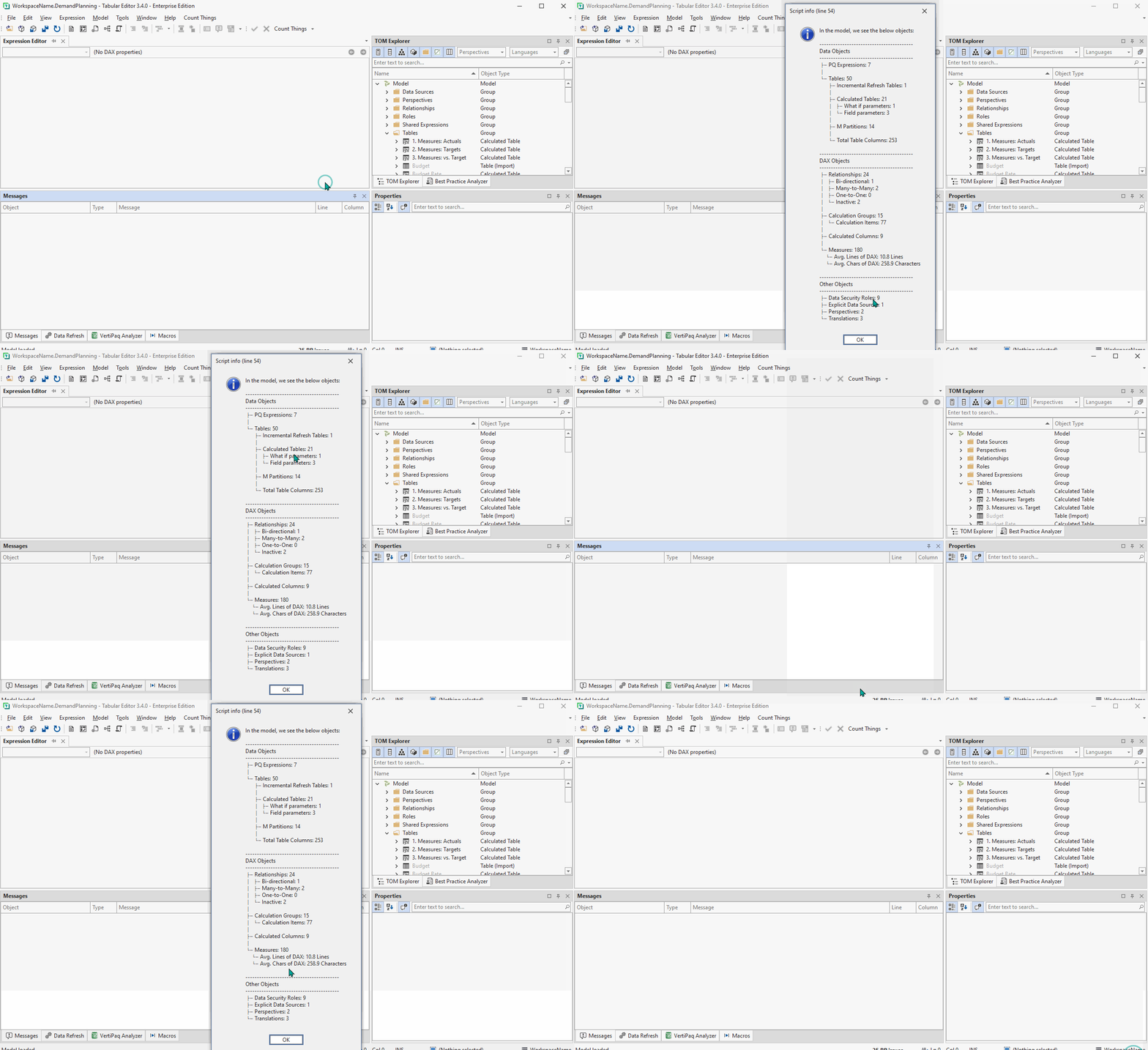
Getting this information is easy to do with C# Scripts in Tabular Editor. With a single line, you can quickly count any object and output the result to a pop-up “info” window:
C# SCRIPTS & MACROS IN TABULAR EDITOR
One of the most powerful features in Tabular Editor, C# scripts allow programmatic access to the Tabular Model Metadata. We can use them to read, interact with and write model metadata changes with some C# written inside the Tabular Editor “C# Script” window. Further, they allow us to use rich functionalities like dynamic LINQ expressions or API calls to web services for more advanced use-cases.
C# Scripts enable automation and extreme productivity enhancements. In this case, we can fully automate Power Query formatting, applying it to either all M Expressions in our model, or a single M Expression that we’ve selected. The below script is an example which formats Power Query of a selected partition, replacing the unformatted Power Query code with the formatted code.
C# SCRIPT: COUNT MODEL OBJECTS
If the below script is copied into a Tabular Editor 3 C# Script window, you can execute it to return a pop-up that will count the number of objects by type. This is a nice, quick way to get an overview of what is in the model. You can delete any objects that are not relevant to you.
By default, the pop-up will resemble the one in the image, above.

TO CONCLUDE
To count the number of objects in your model, you can make use of C# scripts in Tabular Editor. These counts can be structured and output to pop-up “Info” windows for a quick, glanceable overview of what’s in the model.
NEXT UP
Read about how C# scripts like this can be saved as macros and bound to keyboard shortcuts or custom toolbar buttons. With a push of a button or keyboard hotkey, you can get this overview!